Connect Enter to GitHub
Learn how to import from GitHub, sync your code, and keep full control of your Enter projects — without breaking your flow.
Building with Enter is designed to feel fast, fluid, and low-friction.
You prompt, iterate, preview, and ship — all in one place.
But sooner or later, many creators hit the same questions:
- “How do I own my code?”
- “What if I want to start from an existing repo?”
- “How do I collaborate with developers or deploy elsewhere?”
- “Can I move between Enter and GitHub without losing context?”
That’s exactly what Enter’s GitHub integration is built for.
The problem: builders eventually outgrow closed environments
For many AI app builders — especially founders, PMs, and non-engineers — early velocity matters more than tooling perfection.
But as projects mature, common pain points emerge:
- Your code is locked inside a platform You can build fast, but exporting or migrating later becomes risky.
- Developers want GitHub, not a black box Collaboration, PRs, reviews, and local debugging all happen there.
- You already have a GitHub repo Starting over just to use an AI builder feels wasteful.
- Deployment needs flexibility Vercel, Netlify, self-hosting — none of these should be blocked.
Most AI builders solve only half the problem: exporting code. Enter goes further.
Enter’s solution: two-way GitHub sync and import
With Enter’s GitHub integration, you can:
- Import an existing GitHub repository into Enter
- Export your Enter project to GitHub
- Keep code in sync in both directions
- Work in Enter, GitHub, or locally — without losing consistency
GitHub becomes the source of truth, while Enter stays your fastest way to think, iterate, and build.
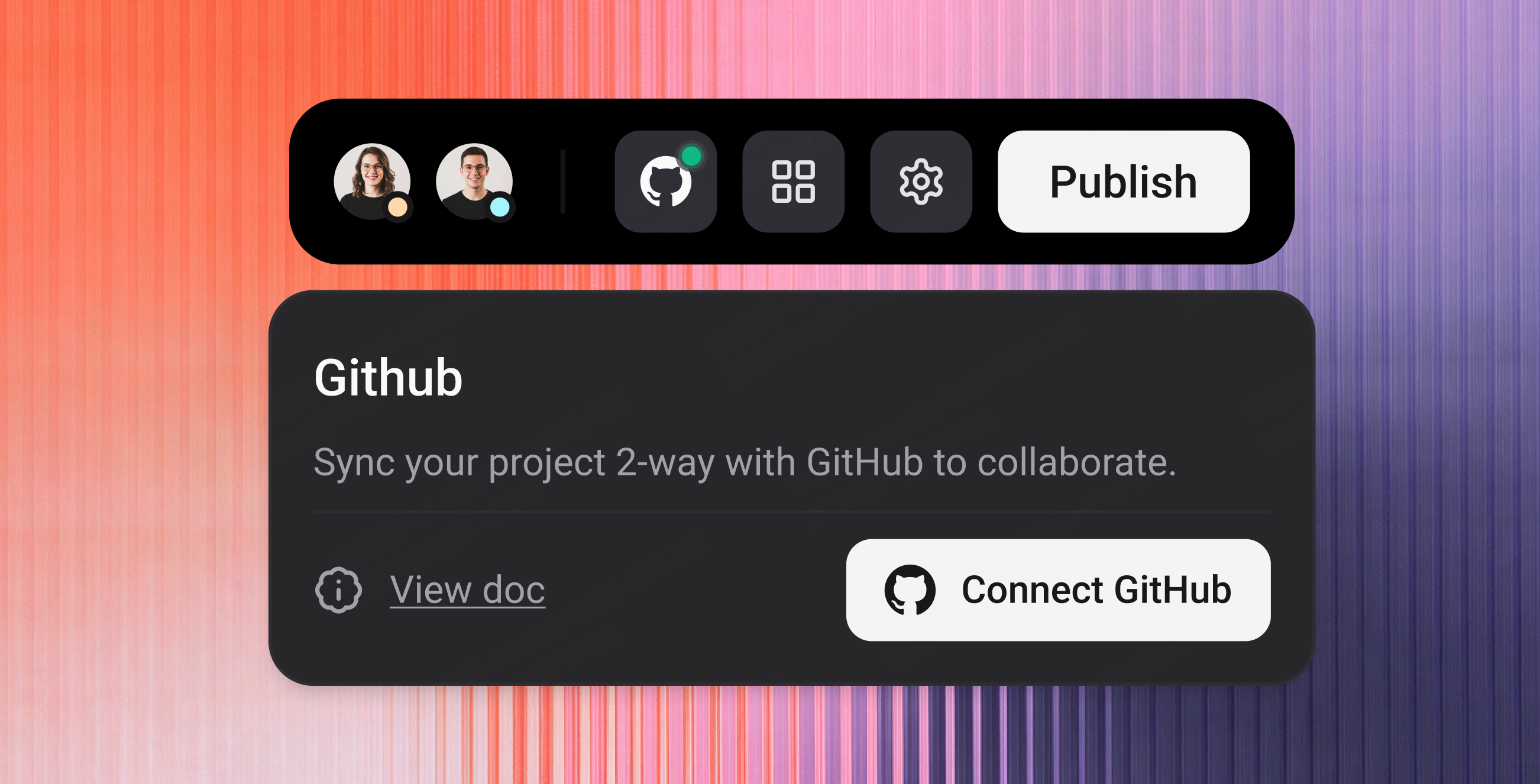
About GitHub (for non-developers)
GitHub is a cloud platform for storing and managing code.
It:
- Tracks every change
- Enables collaboration
- Works with deployment tools like Vercel and Netlify
If you’re not technical, think of GitHub as Google Docs + version history, but for code.
You don’t need to “know Git” to use Enter with GitHub — but if your team does, everything just works.
Why connect Enter to GitHub
Connecting your Enter project to GitHub lets you:
- Own your code Your project lives in your GitHub account, not locked inside Enter.
- Import existing projects Bring real-world repos into Enter and continue building with AI.
- Collaborate naturally Use branches, pull requests, reviews, and issues as usual.
- Sync automatically Changes in Enter sync to GitHub. Changes in GitHub sync back to Enter (default branch).
- Work locally or deploy anywhere Clone, edit, test, deploy — without breaking Enter.
<Note> You don’t need GitHub to use Enter. Many users build and ship entirely inside Enter — GitHub is there when you need it. </Note>
Two ways to use Enter + GitHub
1. Import from GitHub (start with an existing repo)
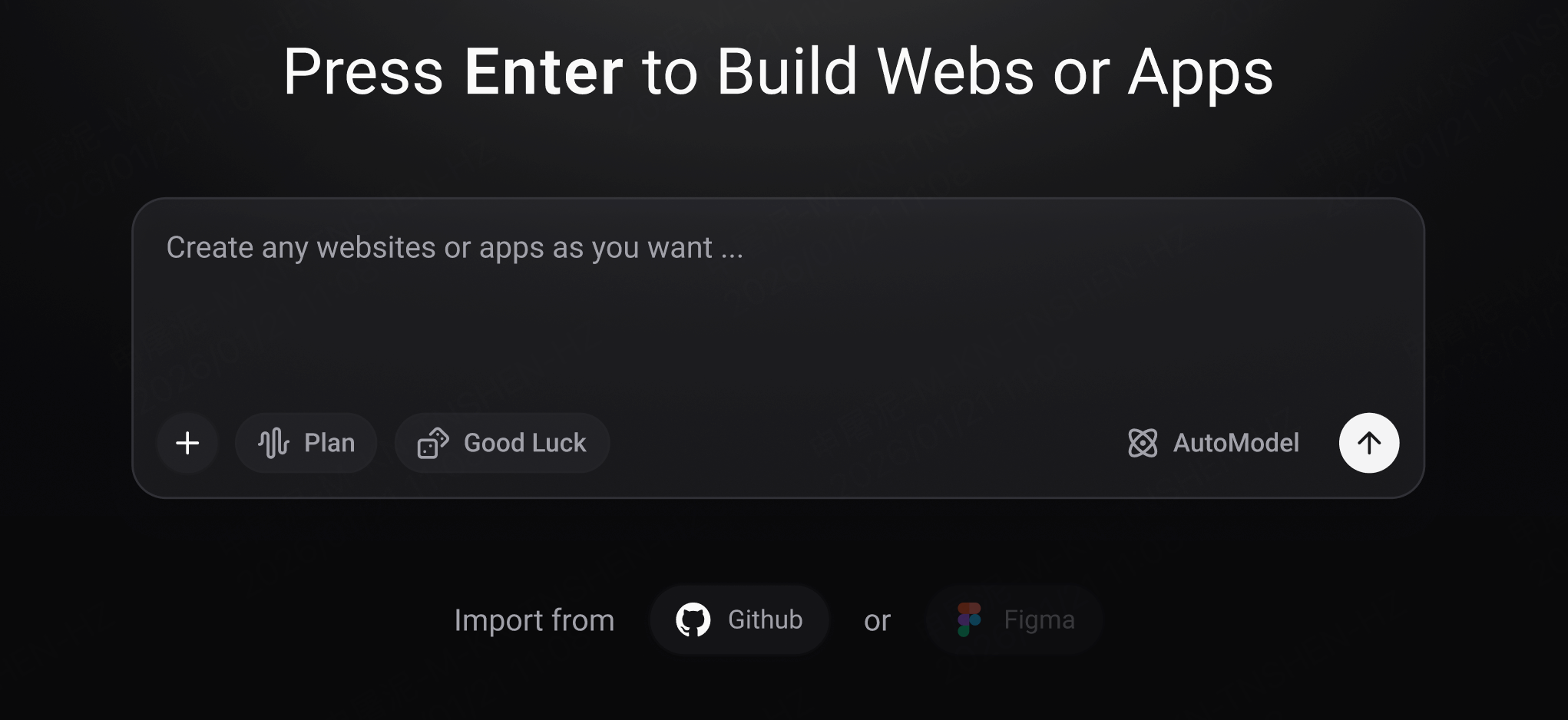
If you already have a GitHub repository:
- A side project
- A prototype
- An abandoned MVP
- A production codebase you want to improve faster
You can import it directly into Enter.
Enter will:
- Pull your repo
- Analyze the file structure
- Two-way sync automatically
- Let you continue building via chat, editor, and previews
You don’t start from zero. You start from where you already are.
2. Export & sync an Enter project to GitHub
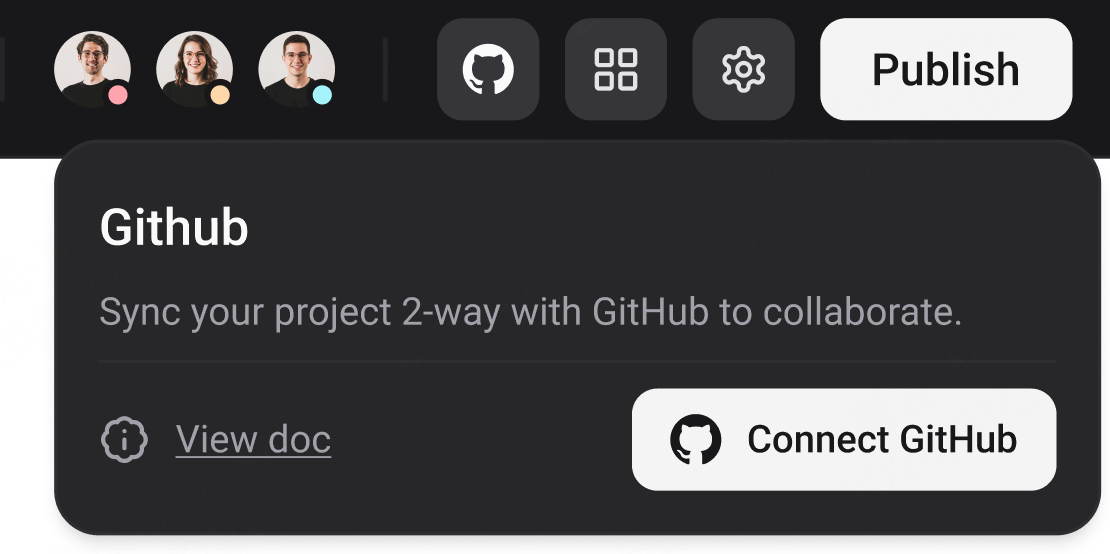
If you start inside Enter, you can connect GitHub anytime.
Once connected:
- A GitHub repository is created
- Two-way sync starts automatically
- GitHub becomes the long-term home of your code
Before you connect
A few important things to know:
- GitHub account required Create one for free at github.com.
- Single source of truth Once connected, GitHub is the canonical source.
- Two-way sync Enter ↔ GitHub syncs on the branch you determined.
- Stable repo path matters Renaming or moving the repo will break the connection.
<Warning> Do not rename, move, or delete the GitHub repository after connecting. This will break syncing and block edits inside Enter. </Warning>
How to connect GitHub to Enter
Choose your starting point
When working with GitHub in Enter, there are two valid entry paths:
- Import from GitHub You already have a repository and want to continue building it inside Enter.
- Connect an Enter project to GitHub You started in Enter and now want to sync your project to GitHub.
Once you decide, follow the corresponding steps below.
<Columns>
<Left>
Option A: Import a GitHub repository into Enter
Use this flow if your code already lives on GitHub.
Step A1: Create a new project
- From the Enter dashboard, click New Chat
- Select Import from GitHub
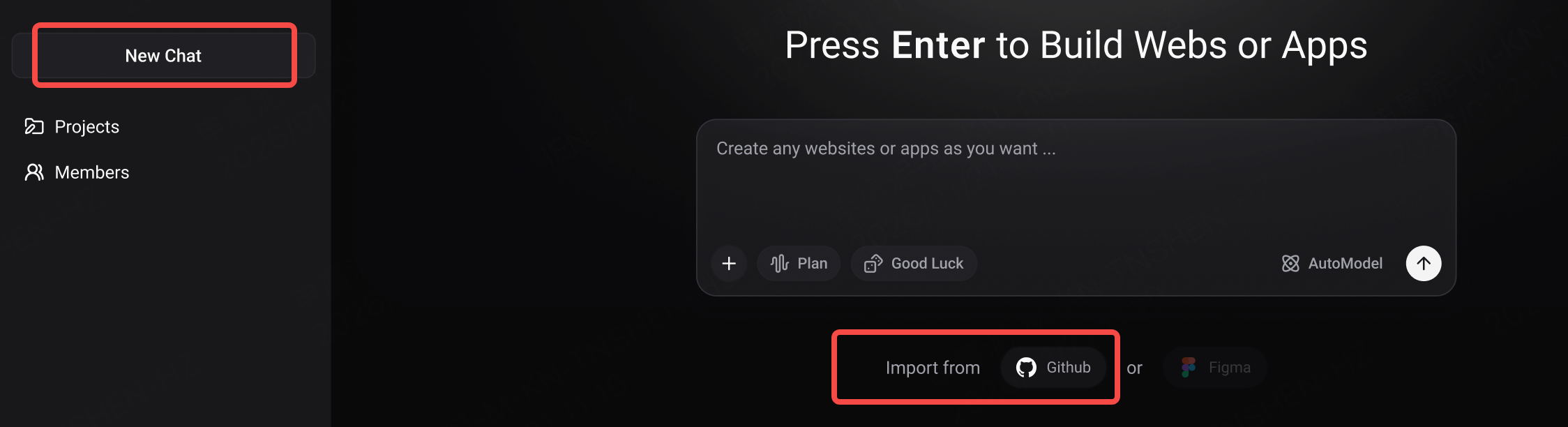
Step A2: Authorize GitHub
- Sign in to GitHub (if needed)
- Authorize Enter via OAuth
This allows Enter to read repositories you choose to import.
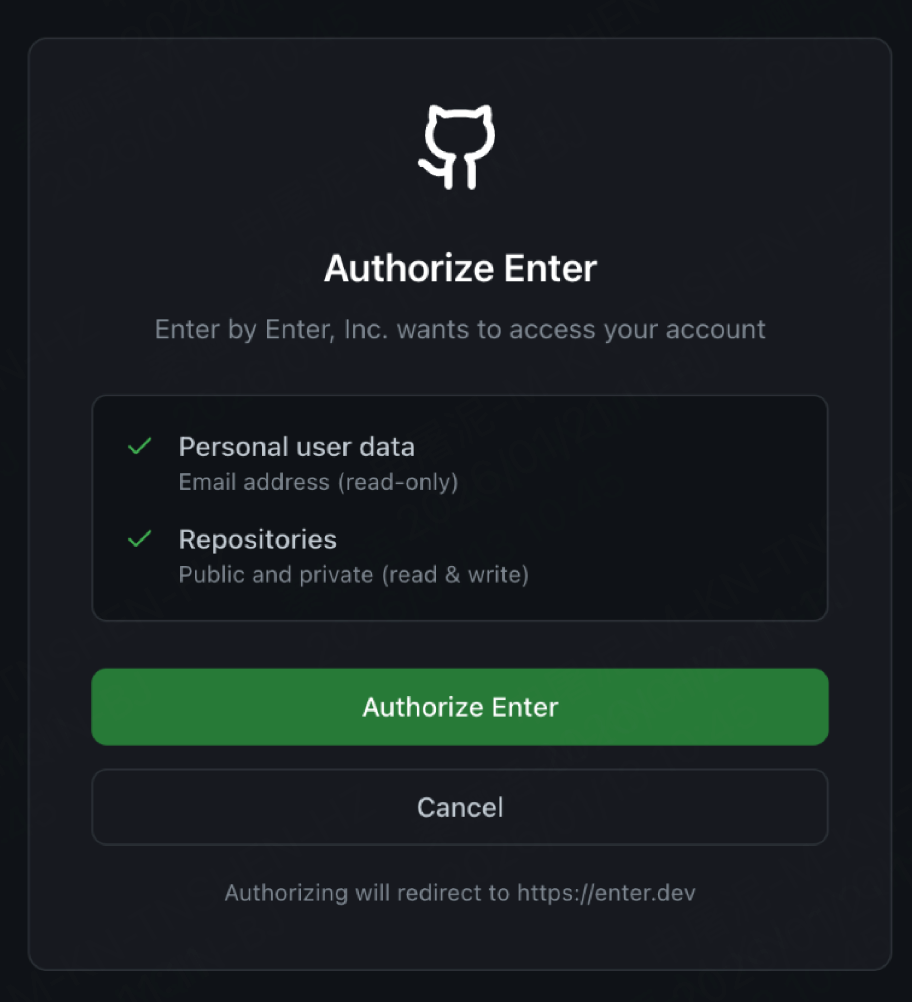
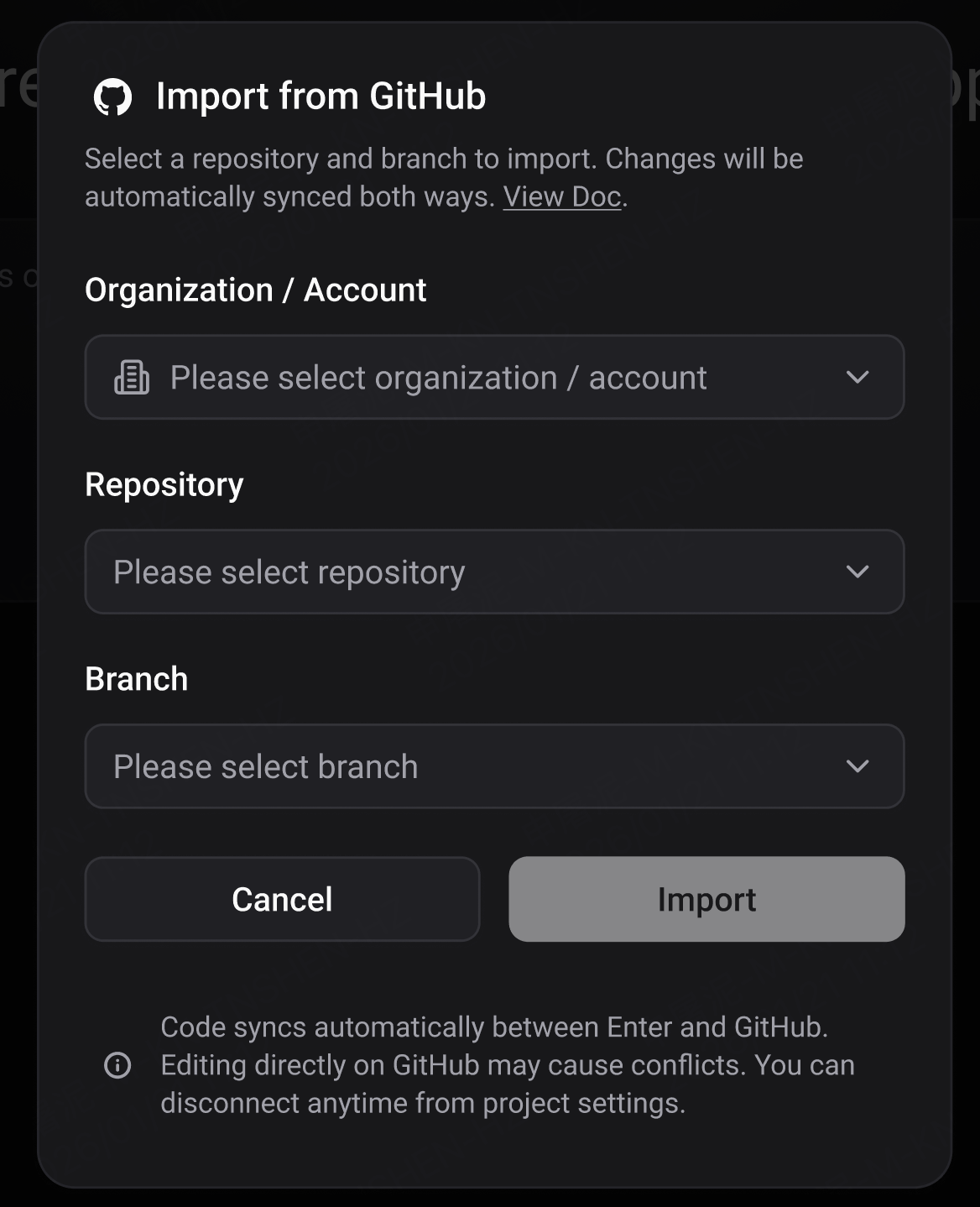
Step A3: Select repository and branch
- Choose the organization or personal account
- Select the repository
- Select the branch you want to import
- Click Import
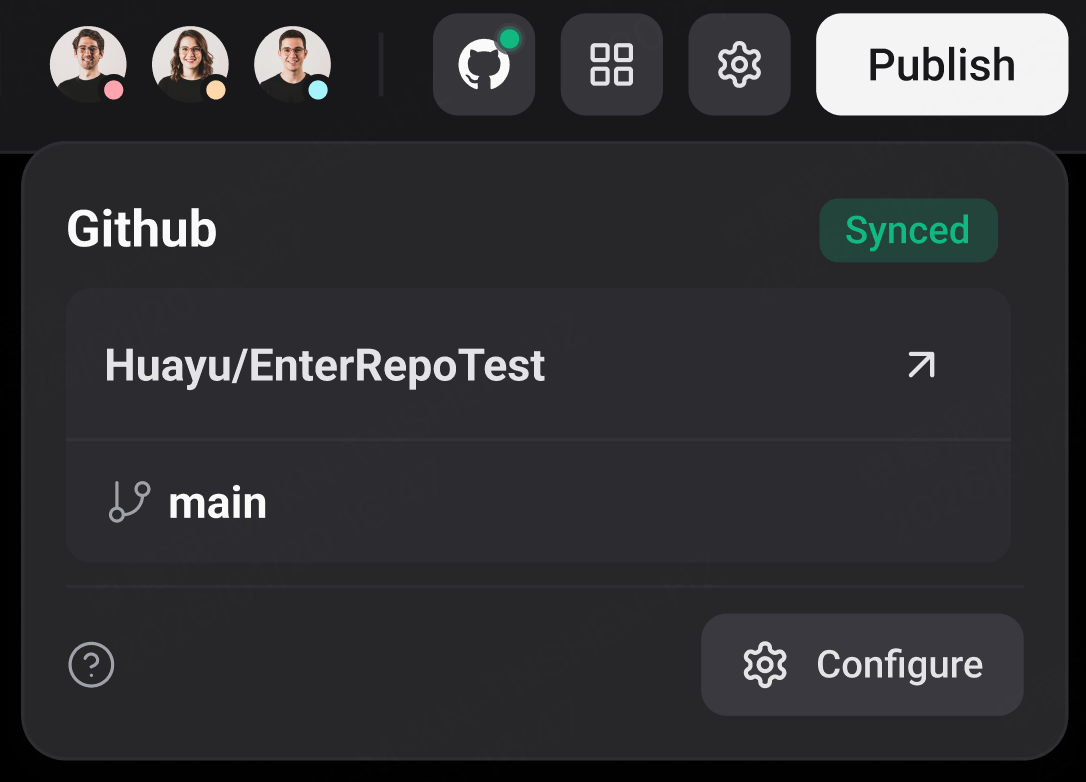
That’s it.
Your GitHub project is now fully imported into Enter and ready to build on.
</Left>
<Right>
Option B: Connect an Enter project to GitHub
Use this flow if you have an Enter project to sync to GitHub.
Step B1: Open your project
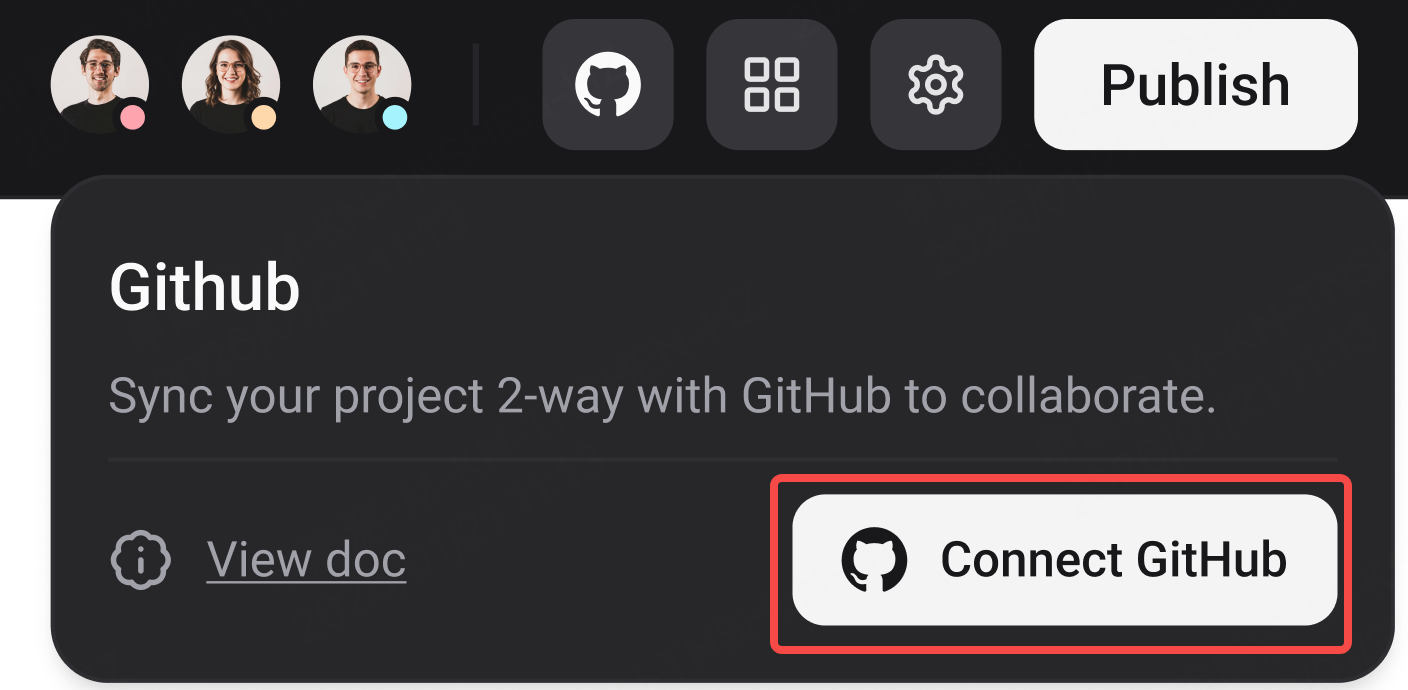
- Enter the project detail page
- Click the GitHub icon in the project header
Step B2: Authorize GitHub
If you haven’t already:
- Authorize Enter to access your GitHub account
- Select the organization or personal account
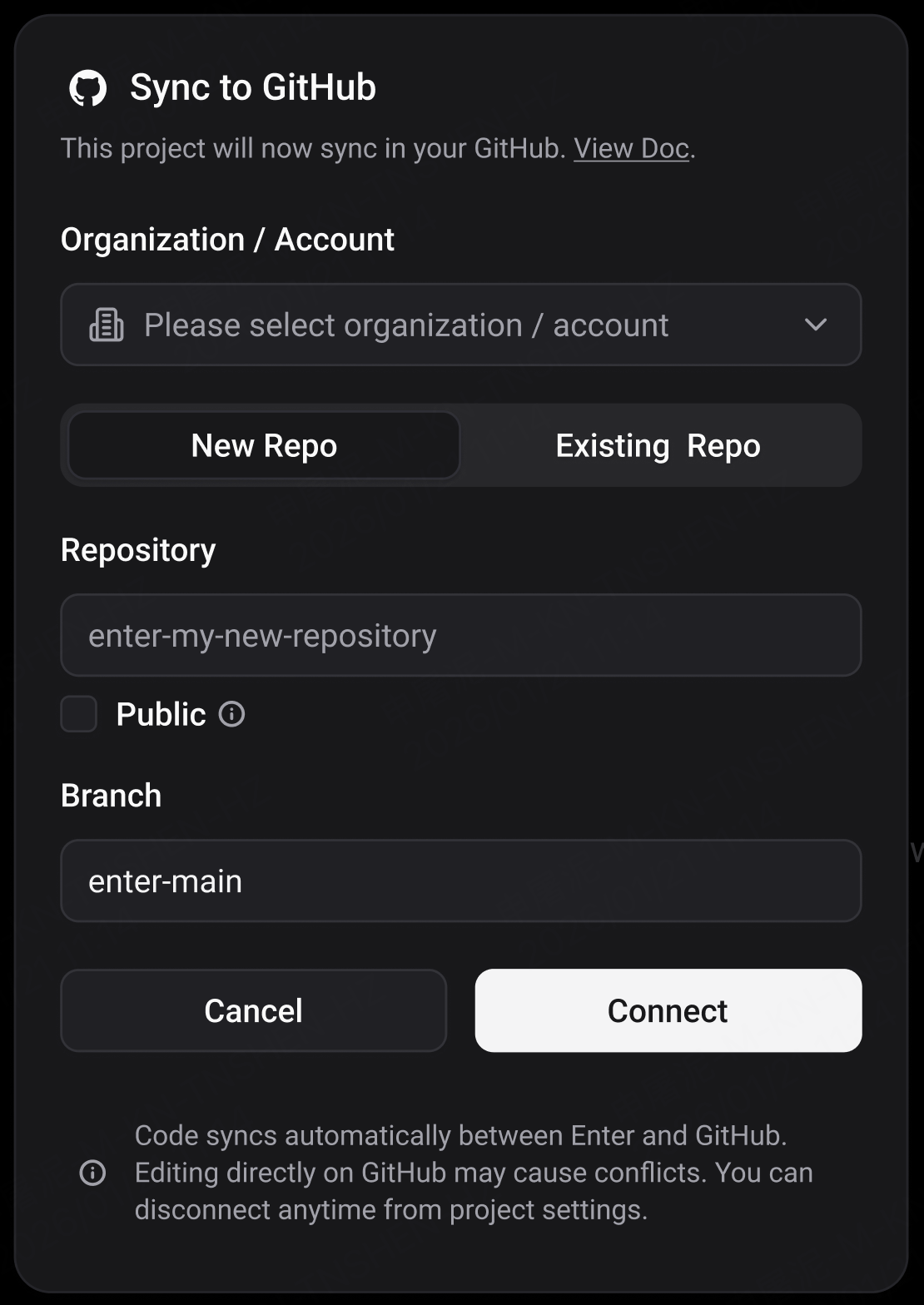
Step B3: Choose how to connect
You now have two options:
Option 1: Create a new GitHub repository
- Choose Create new repository
- Define the repository name
- Define the default branch name
- Click Connect
A new repository is created, and sync starts immediately.
Option 2: Connect to an existing GitHub repository
- Choose Connect existing repository
- Select the repository
- Create a new branch for Enter
- Click Connect
This keeps your existing repo intact while safely integrating Enter.
</Right>
</Columns>
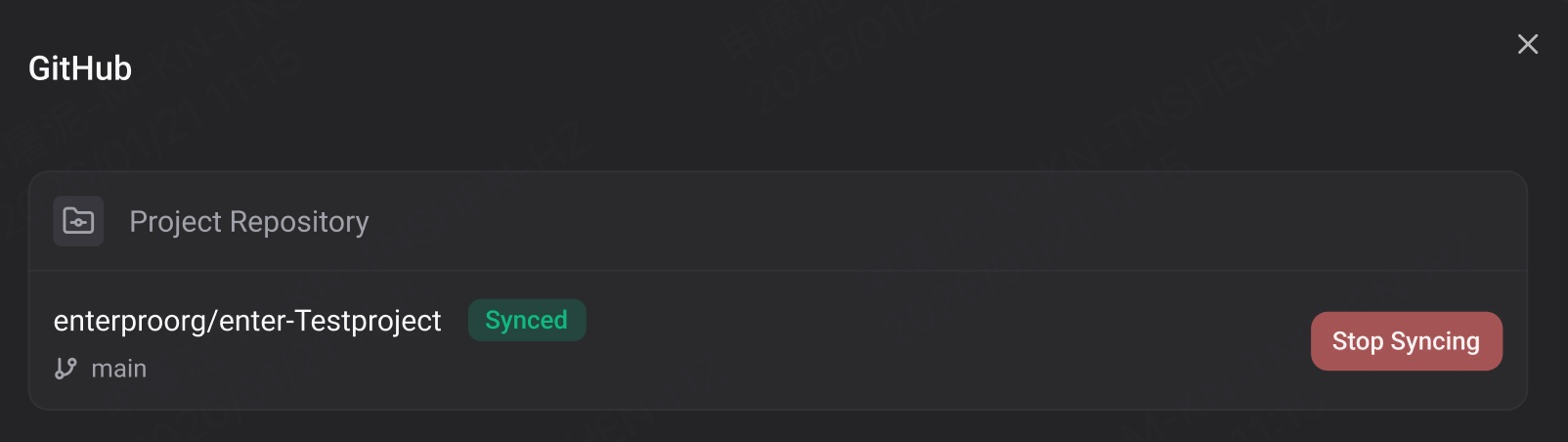
Once connected, Enter and GitHub will stay in sync on the selected branch.
Disconnecting GitHub
You can disconnect GitHub from settings. When you disconnect:
- Sync stops
- The GitHub repo stays intact
- Enter keeps a local copy of the latest code
FAQ
<FAQ>
<Q>Do I need to know GitHub to use this?</Q>
<A>No. If all you want is safe storage and ownership, you can connect once and never touch GitHub again. Advanced workflows are optional.</A>
<Q>What makes Enter different from other AI builders?</Q>
<A>Most tools only export code. Enter supports: Import from GitHub, Two-way sync, Long-term collaboration workflows. It's designed for projects that grow beyond prototypes.</A>
<Q>Can I import a production repo?</Q>
<A>Enter currently supports specific project types. In general, well-structured Vite projects are fully supported and work best. Other project setups may import successfully, but compatibility is not guaranteed. Plus: Asking Enter to solve preview problems is recommended. </A>
<Q>What happens if I rename or move the repo?</Q>
<A>The connection breaks and syncing stops. Restore the original name and path to recover.</A>
<Q>Why don't my GitHub changes appear in Enter?</Q>
<A>Under normal circumstances, Enter automatically pulls and pushes changes on the branch you selected during setup. If your expected changes are not syncing, please check that: You are committing to the same branch that is connected to Enter, and the branch is correctly selected in the project's GitHub settings. Branch mismatch is the most common reason for missing updates.</A>
<Q>Who can add and manage GitHub organizations?</Q>
<A>GitHub organization management follows workspace-level permissions. Only workspace owners and managers can add and manage GitHub organizations. Editors can use connected organizations, but cannot add or manage them. Each owner or manager can only manage the organizations they personally add. All users can freely use their personal GitHub accounts with no limits.</A>
<Q>Can multiple people manage the same GitHub organization?</Q>
<A>No. GitHub organizations are managed per individual owner or manager, not jointly. Each authorized person controls only the organizations they personally connect.</A>
</FAQ>
Build fast. Own your code. Stay flexible.
With Enter’s GitHub integration, you don’t have to choose between the two.
Start from an existing repository, or connect your Enter project when you’re ready.
Move between AI-assisted building and standard development workflows — without breaking context or momentum.
Bring your code into Enter, or take Enter wherever your code needs to go.