Enter Cloud, Built-in Backend Services for Your App
Building a full-stack app usually means juggling multiple services — a database here, file storage there, environment variables somewhere else. Enter Cloud brings all of that directly into your project. With one click, you get a managed database, edge functions, object storage, secrets management, and user authentication — all accessible from the same interface where you build your frontend, and fully controllable through your AI Agent.
Why Enter Cloud?
If you've ever tried connecting an external backend service like Supabase to your project, you know the pain: creating separate accounts, learning unfamiliar dashboards, switching between tabs, and dealing with fragmented workflows. Our data showed that while over 30% of projects used Supabase, many users dropped off simply because the setup was too complex.
Enter Cloud solves this by embedding backend services natively into Enter. There's nothing to sign up for, nothing to configure externally — just enable it and start building.
Key benefits:
- Zero setup — Enable Cloud with a single click, right from your project.
- Unified experience — Manage your database, functions, storage, secrets, and auth all in one place.
- Agent-powered — Your AI Agent can create tables, write functions, query data, and manage cloud resources through natural conversation.
- Free to start — Enter Cloud is available at no extra cost during the launch period.
How to Enable Enter Cloud
There are two ways to enable Cloud for your project.
Option 1: From the Integrations Panel
- Open your project and find the Cloud section on the right side of the Preview panel.

- Locate Cloud (described as "Managed databases and backend services") and click Enable.
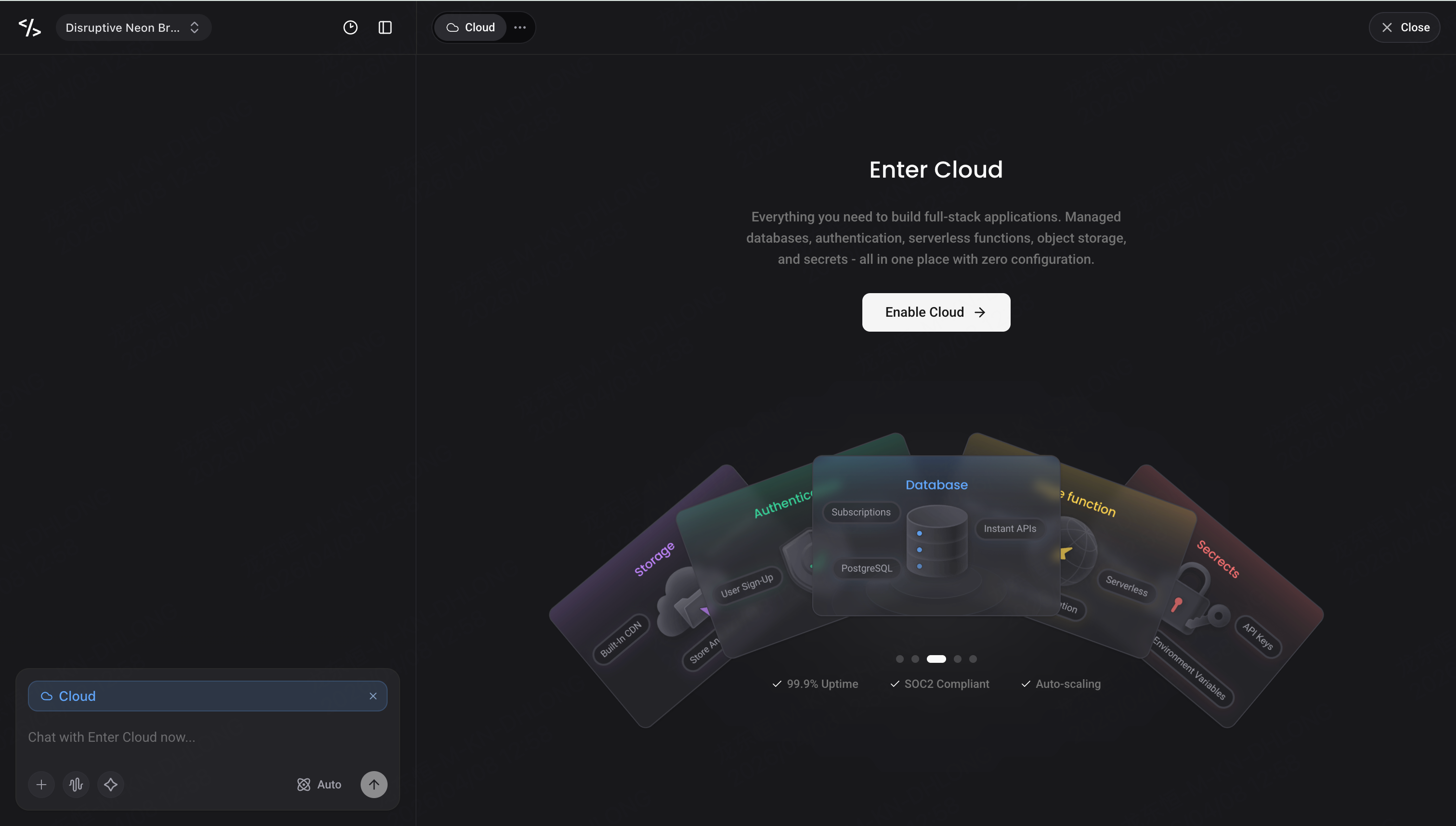
- Enter will automatically provision your cloud resources. You'll see a loading state while everything is being set up.
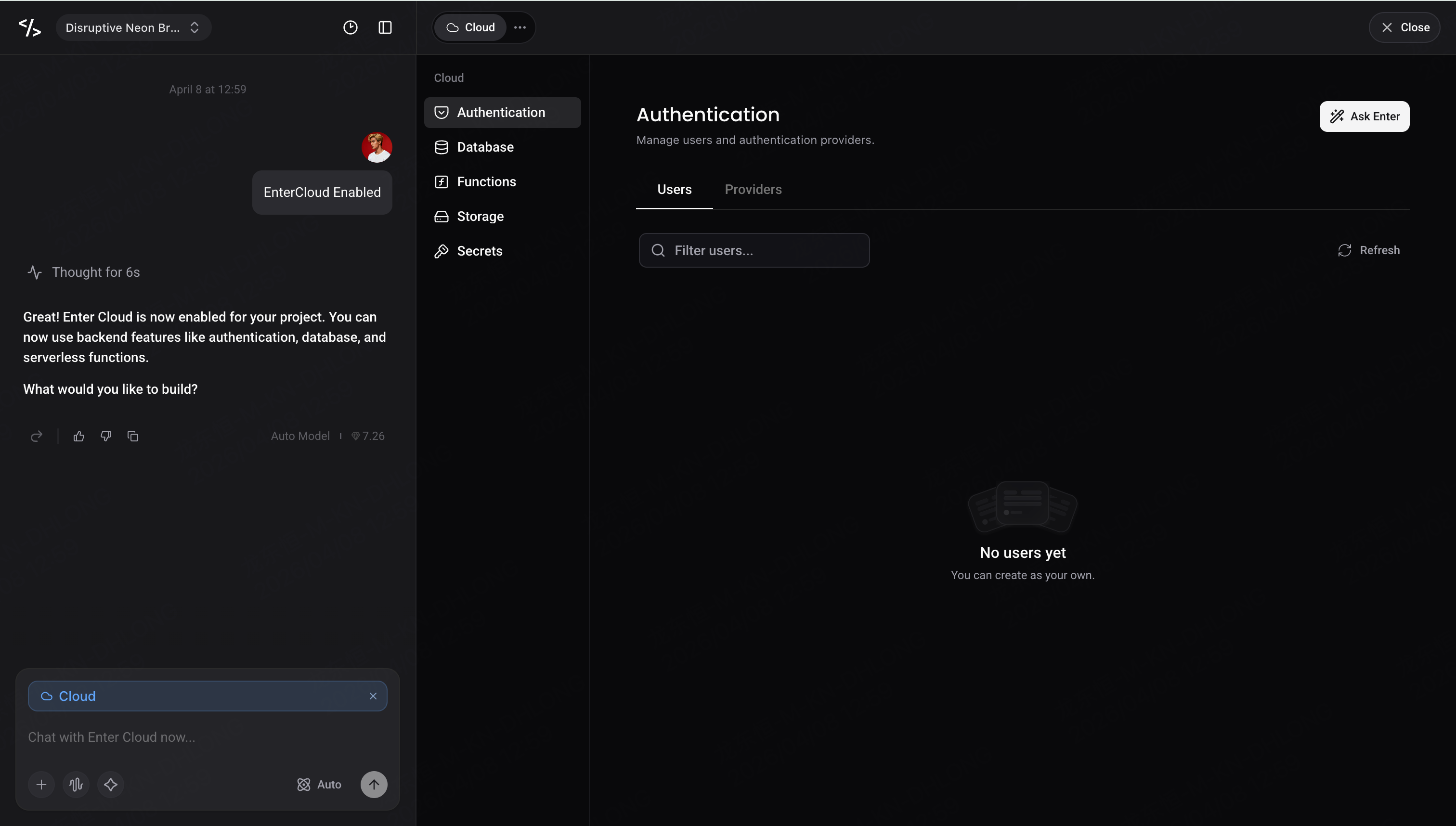
- Once ready, the status changes to Connected, and your Cloud Panel is live.
Option 2: Through Chat
Simply tell your Agent what you need. For example:
"I need a database for my app"
The Agent will recognize that Cloud is required, enable it for you, and guide you through the setup — all within the conversation.

The Cloud Panel
Once Cloud is enabled, click the Cloud tab at the top of your project (next to Code) to open the Cloud Panel. The panel is organized into five sections:
- Authentication — User management and sign-in configuration
- Database — Table creation, data browsing, and policy management
- Functions — Edge Functions with code viewing and logs
- Storage — File and object storage with bucket management
- Secrets — Environment variables and API key management
What's Inside the Cloud Panel
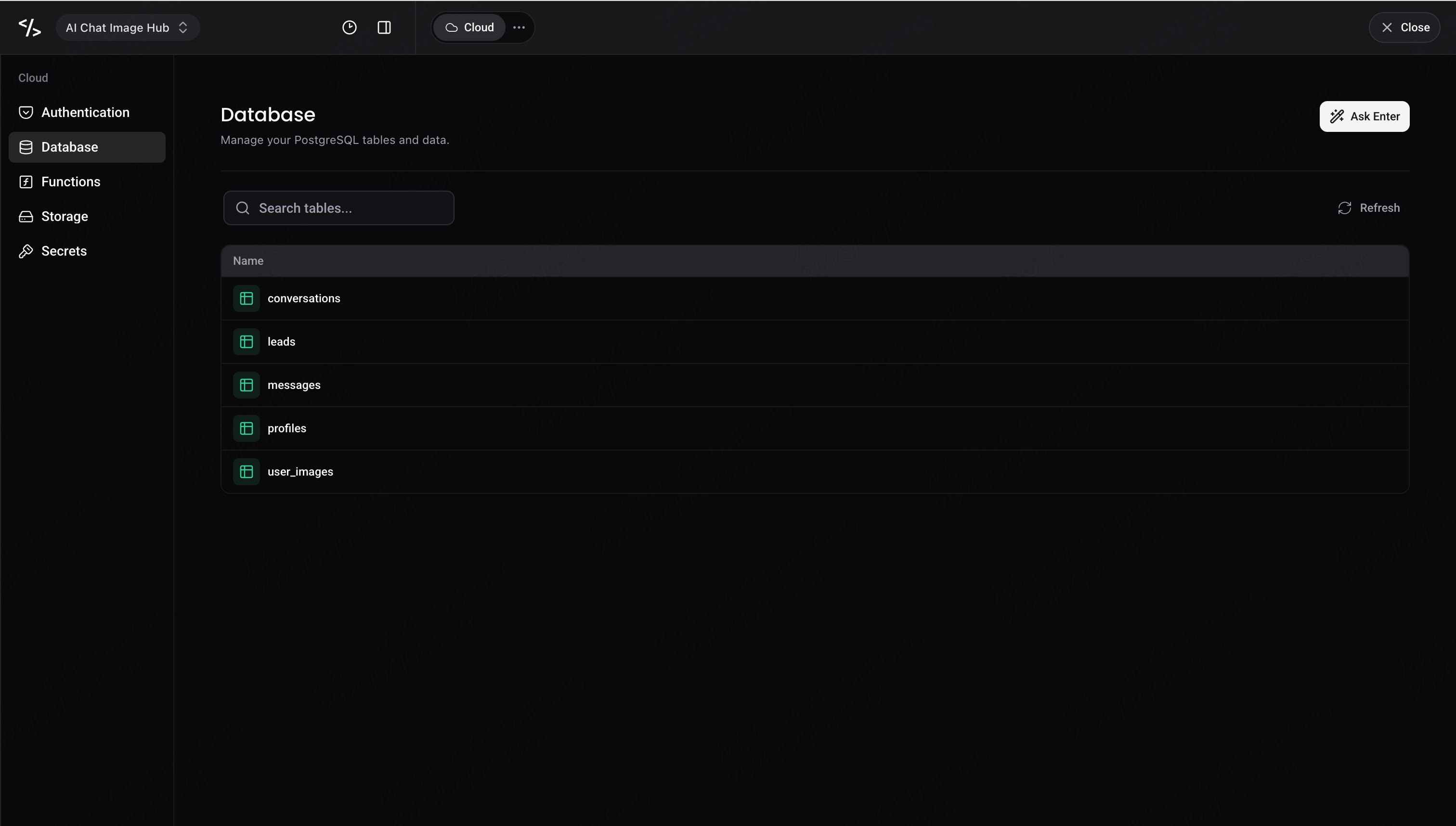
Database
A fully managed PostgreSQL database. Browse all your tables, view and edit row data inline, configure Row-Level Security (RLS) policies, and inspect schemas — or simply ask your Agent to create tables and query data for you.
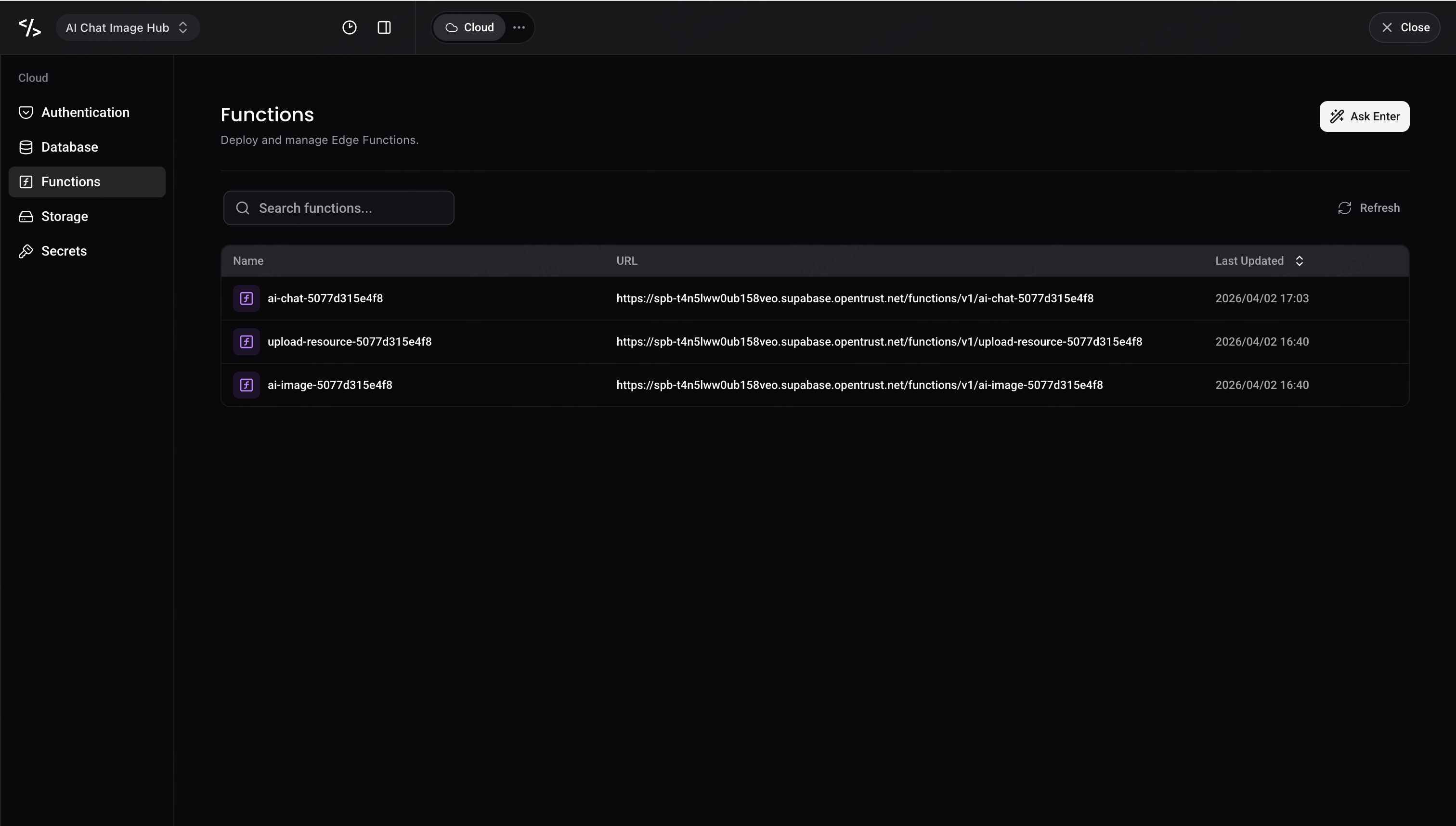
Functions
Deploy and manage Edge Functions — serverless functions running close to your users. View source code, monitor execution logs, and track invocation metrics, all in one place.
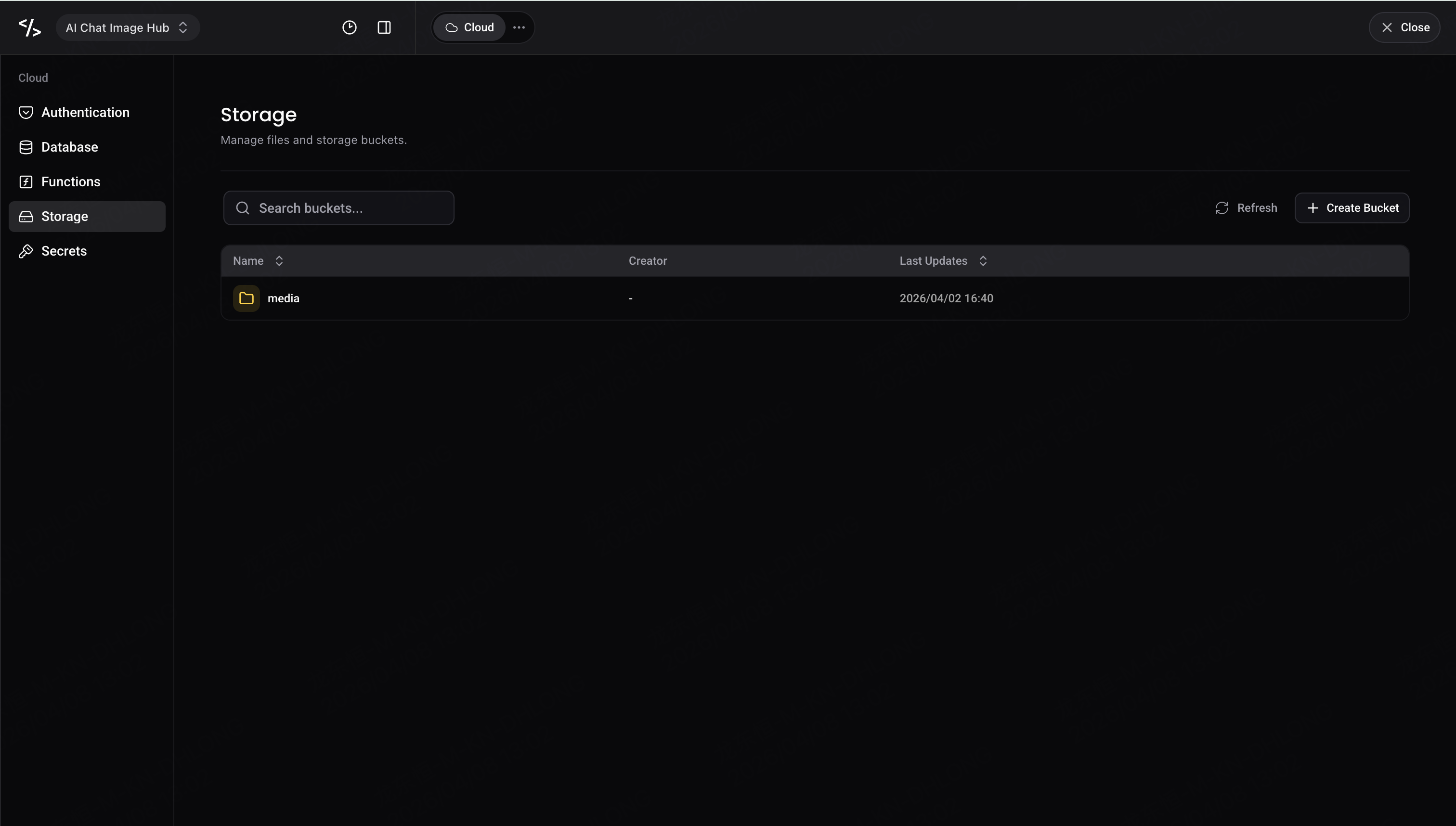
Storage
Object storage organized into Buckets. Upload files, create folders, browse with breadcrumb navigation, and preview images directly in the panel.
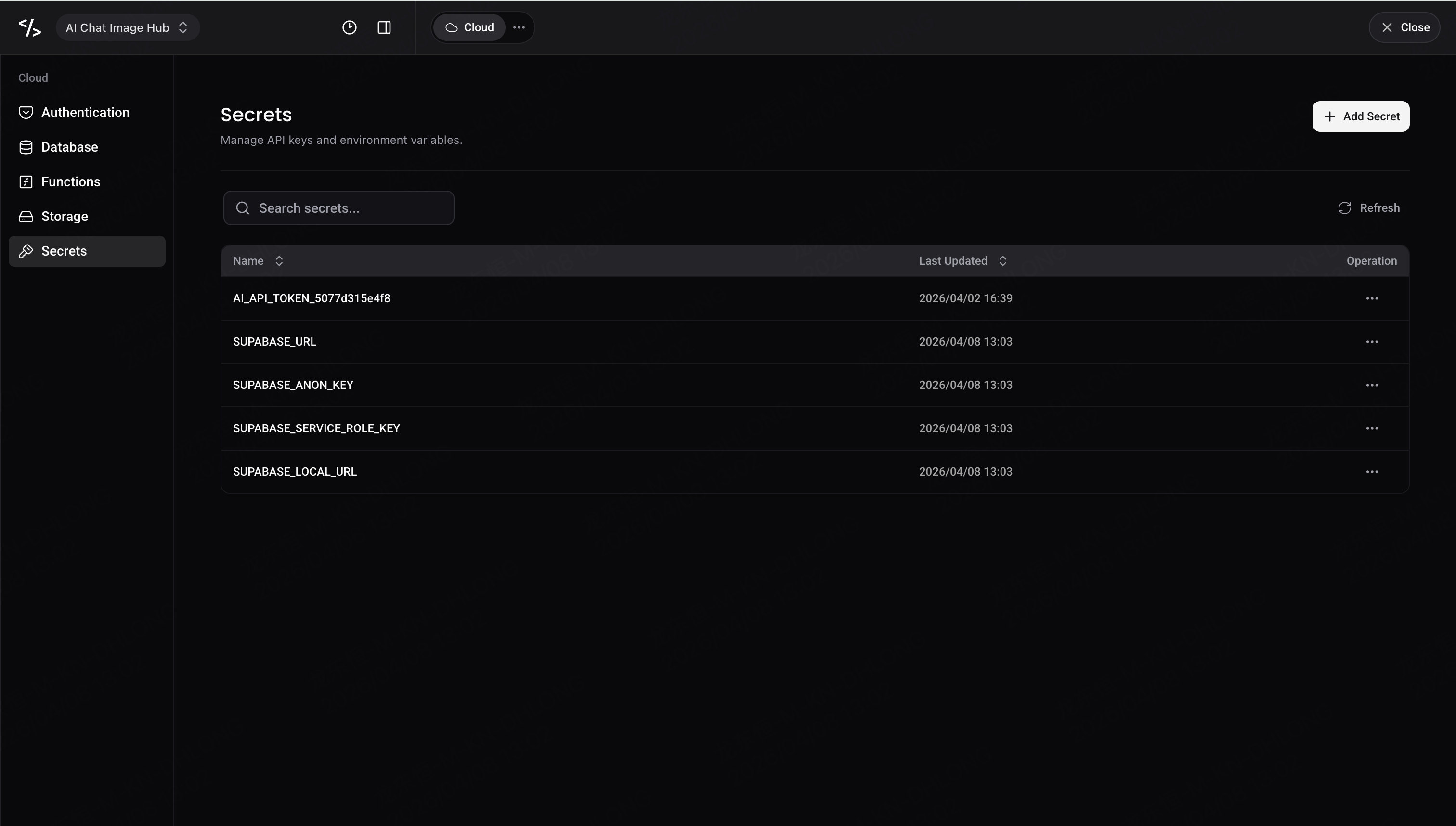
Secrets
Manage environment variables and API keys as secure key-value pairs. Values are masked by default, and you can add, update, or remove secrets at any time.
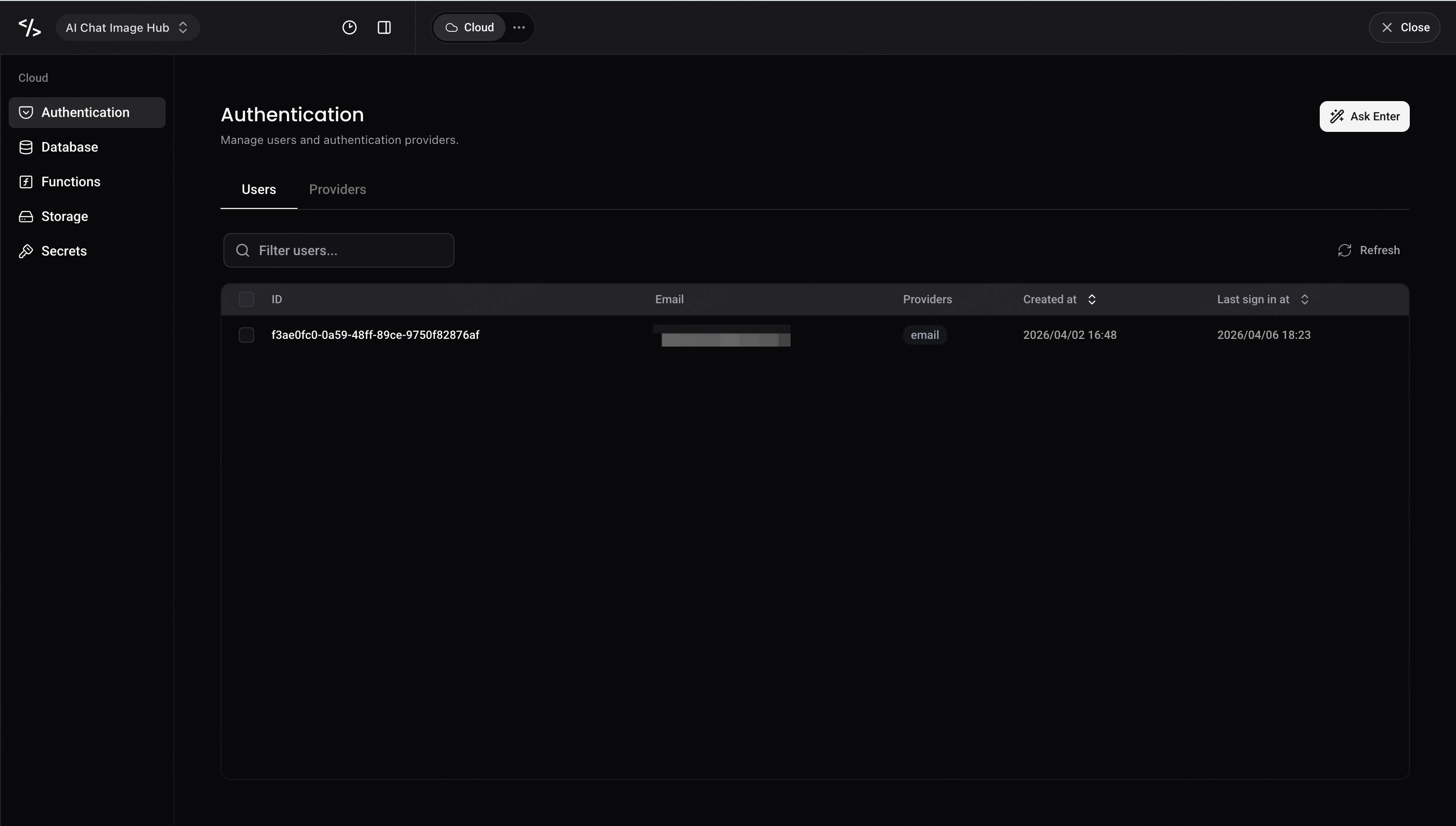
Authentication
Manage registered users and configure sign-in methods. Email authentication is enabled by default with configurable password policies, and more providers (like Gmail) are coming soon.
Your Agent Knows Cloud
One of the most powerful aspects of Enter Cloud is its deep integration with your AI Agent. Instead of manually navigating panels and writing SQL, you can simply ask:
- "Create a users table with email, name, and avatar fields"
- "Query all orders from the last 7 days"
- "Write an edge function that sends a welcome email"
- "Add a Row-Level Security policy so users can only see their own data"
- "Upload this image to the assets bucket"
The Agent understands your project context and can perform complex cloud operations through natural conversation — from creating tables and writing functions to managing storage and configuring auth policies.
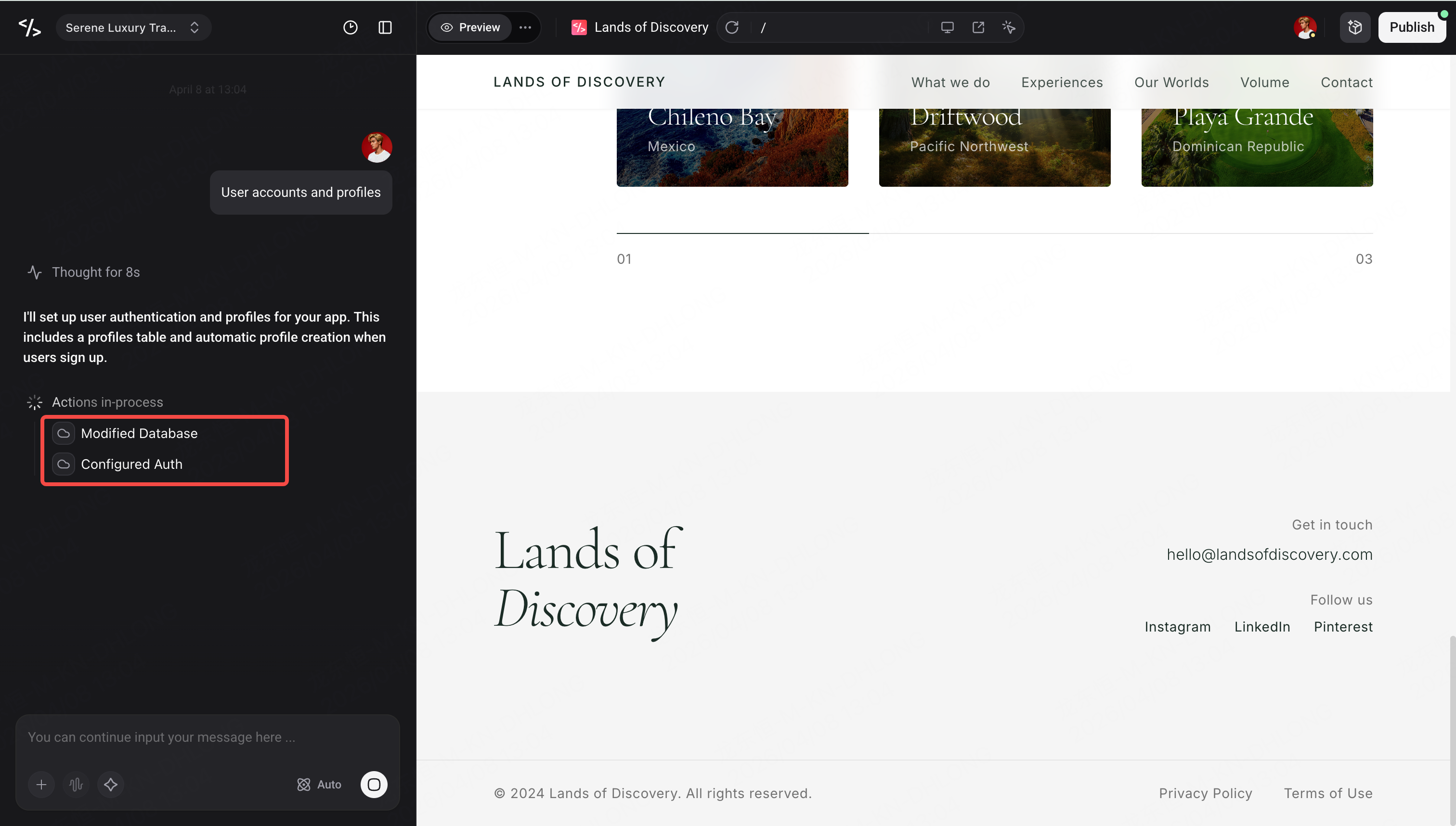
When you're in the Cloud Panel, the Chat input automatically adds context about which section you're viewing. For example, browsing the t_user table will tag your messages with @t_user, giving the Agent precise context for your requests.
Cloud Status Management
Enter Cloud supports pausing and resuming to help you manage resources:
- Pause — When a project has no traffic, Cloud can be automatically suspended.
- Resume — If you open a project with a paused Cloud, you'll see a prompt to resume it. Click Resume Cloud to restart all services.
Summary
Enter Cloud brings everything you need to build a full-stack application into one unified workspace. No more switching between services, no more complex setup — just enable Cloud and start building with your AI Agent.
| Feature | What You Get |
| Database | Managed PostgreSQL with table editor, RLS policies, and schema viewer |
| Functions | Edge Functions with code viewer, logs, and invocation monitoring |
| Storage | Object storage with bucket management and file preview |
| Secrets | Secure key-value storage for environment variables and API keys |
| Authentication | User management with configurable email-based auth |
Head over to Enter now and enable Cloud for your project!