Enter Pro Multi-Session Is Live: Build in Parallel Inside One Project
Enter Pro Multi-Session lets you create multiple chat sessions inside one project, so each task has its own focused space. Build a landing page, enable Analytics, add i18n, debug, or test features in separate sessions. Track status, switch sessions, review version history with session context, and manage projects from a clearer workspace.
Enter now supports multiple chat sessions inside one project. You can separate different tasks into different sessions, keep each session's context clearer, and manage project work from a more organized project page.
One project should not have to become one endless chat.
When you are building a real app, there is rarely only one task happening. You may be working on the landing page, enabling Analytics, adding i18n, fixing a bug, polishing the UI, or preparing a project for publish.
Before, all of that work had to live in one long chat thread. As the conversation grew, different tasks could become mixed together, and it became harder to know which session created which change.
This update gives your project a clearer session-based workflow.
Multiple Sessions in One Project
You can now create new chat sessions inside a project.
A session can focus on one task, such as building a landing page, enabling Analytics, adding i18n, debugging, or testing a feature idea.
The project page now includes a session entry point. From there, you can open the session list, create a new session, and switch between existing sessions.
Each session includes useful information such as:
- Session status
- Session name
- Latest user prompt
- Latest update time
- Session creator
This makes it easier to understand what is happening across a project, especially when multiple people or multiple tasks are involved.
Clearer Session Status
The session list now shows the state of each session.
Supported states include:
idle: the agent is not working, and the user has already viewed the conversationrunning: the agent is currently workingawait response: the agent needs user feedback, such as an action card or question cardawait review: the agent is not working, but the user has not yet viewed the conversation
The session button can also show how many sessions are currently in active states. When multiple states exist, the display prioritizes await response, then await review, then running.
This helps you quickly see which sessions need attention.
A Better Project Page
The project detail page has also been reorganized.
The left header now combines the Enter logo and project selector into one area. The project area can show workspace information, project settings, version access, download code, and general settings such as appearance and language.
The project page also adds clearer session navigation, including a new chat button and a session list button.
The goal is simple: make the project page feel more like a workspace, not just a single chat screen.
Version History With Session Context
Version history now carries more session information.
Version items include fields such as the session name and session creator, so it is easier to understand where a version came from.
This is especially important when a project has multiple sessions. Instead of seeing version history as one flat list, you get more context about which session produced which change.
Workspace-Level Session Access
The workspace view also gains better session organization.
The workspace chat board is designed to show sessions across projects, with session information such as name, status, latest prompt, update time, and owner.
Sessions can be sorted by update time and filtered by status or project.
For users working across multiple projects or multiple sessions, this makes it easier to find the right session without entering a project first and then searching manually.
How to Use Multi-Session
1. Open any Enter Pro project.
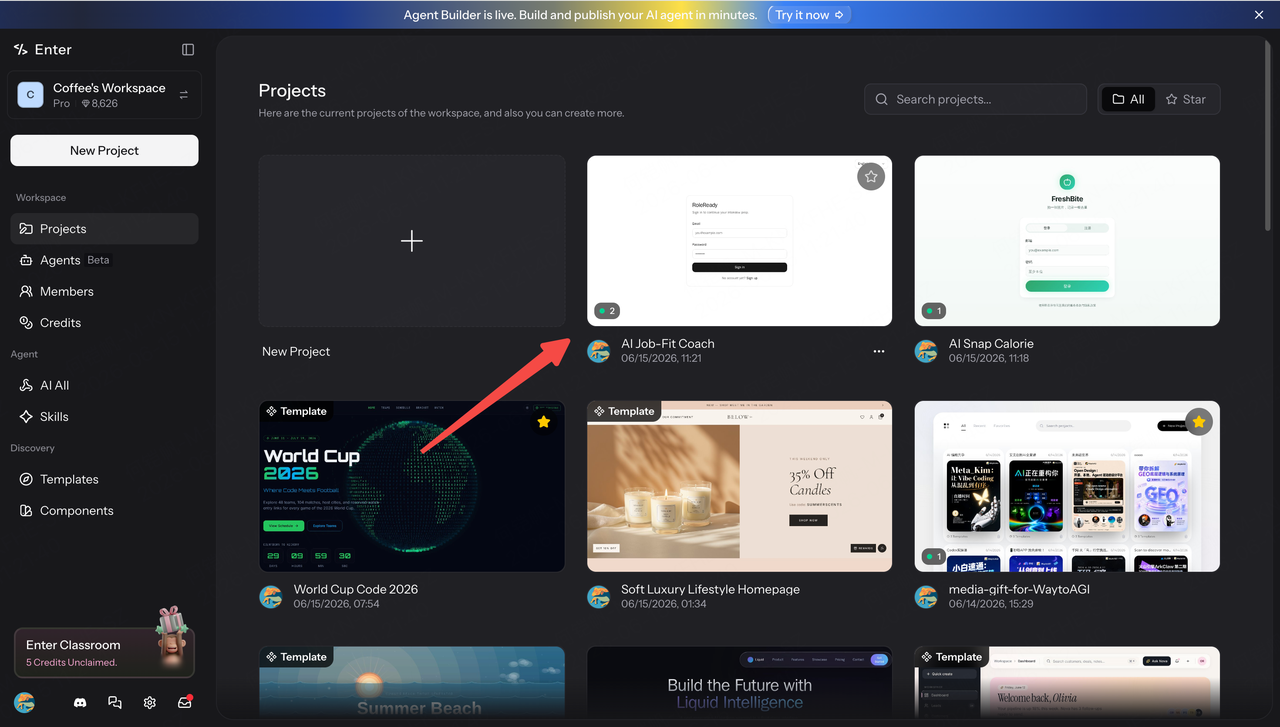
2. Create a new session from the session pane.
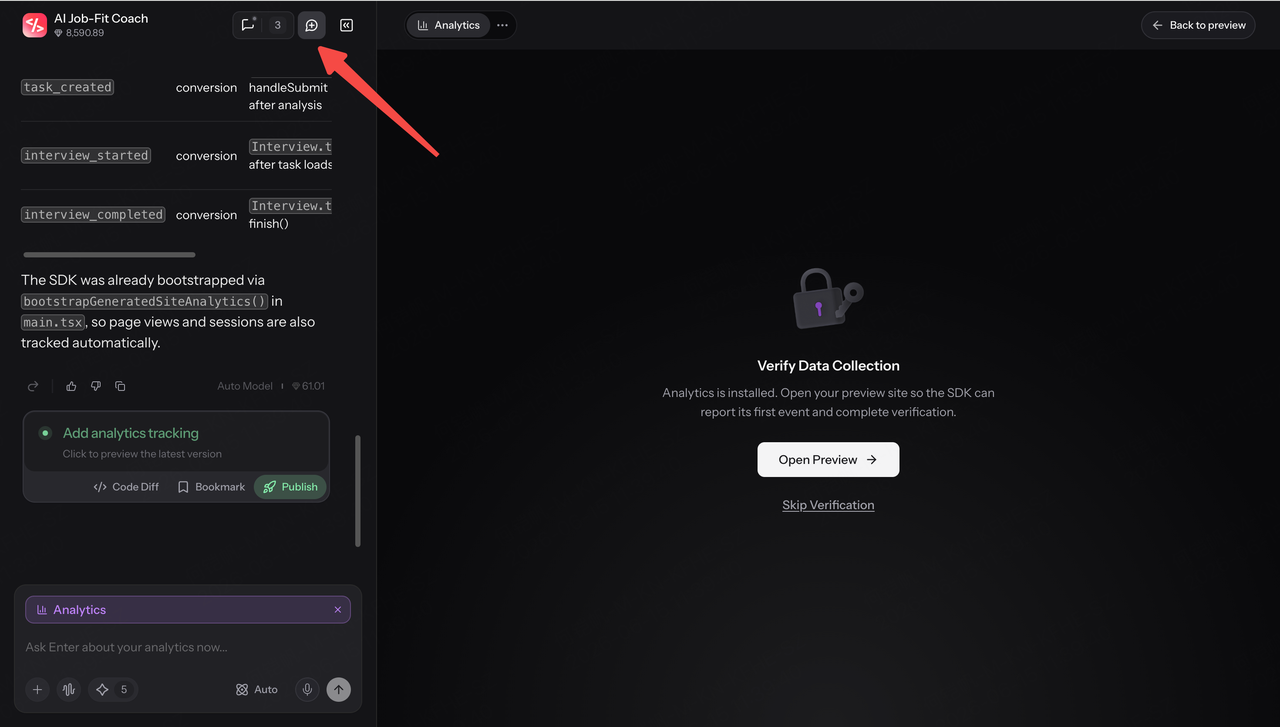
3. Use each session for a focused task. For example:
Session One: enable i18n
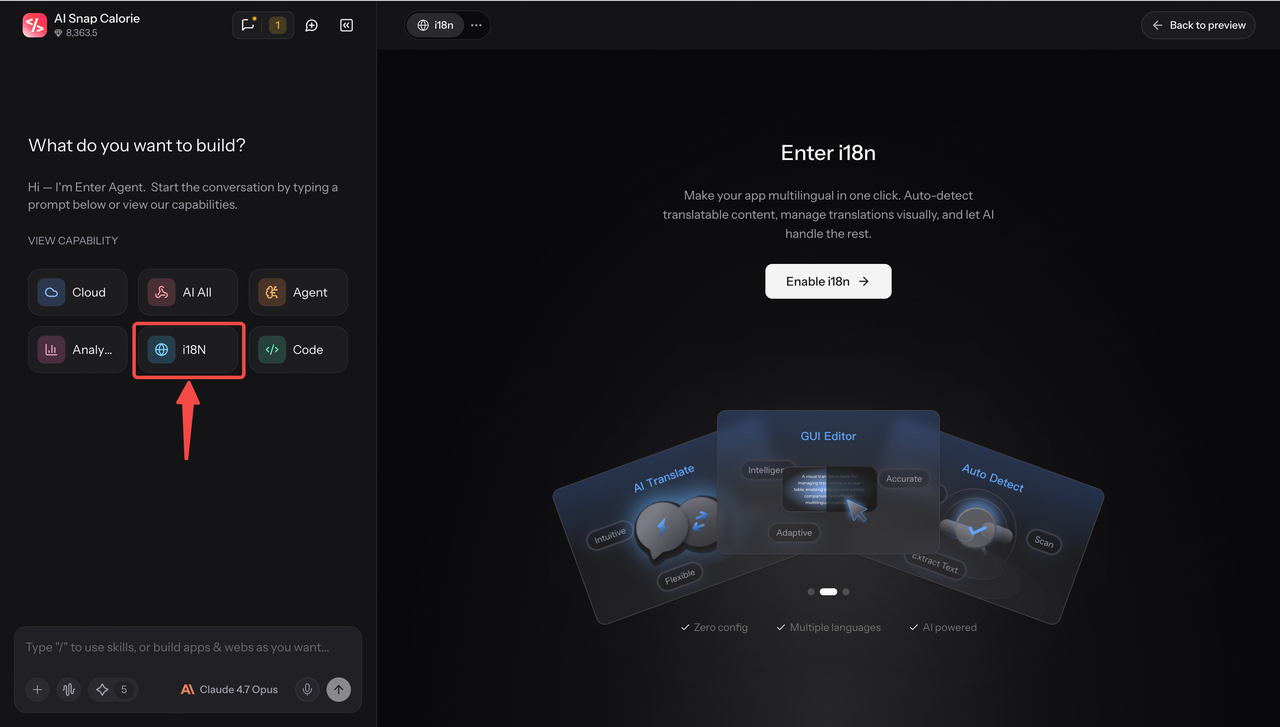
Session Two: enable Analytics
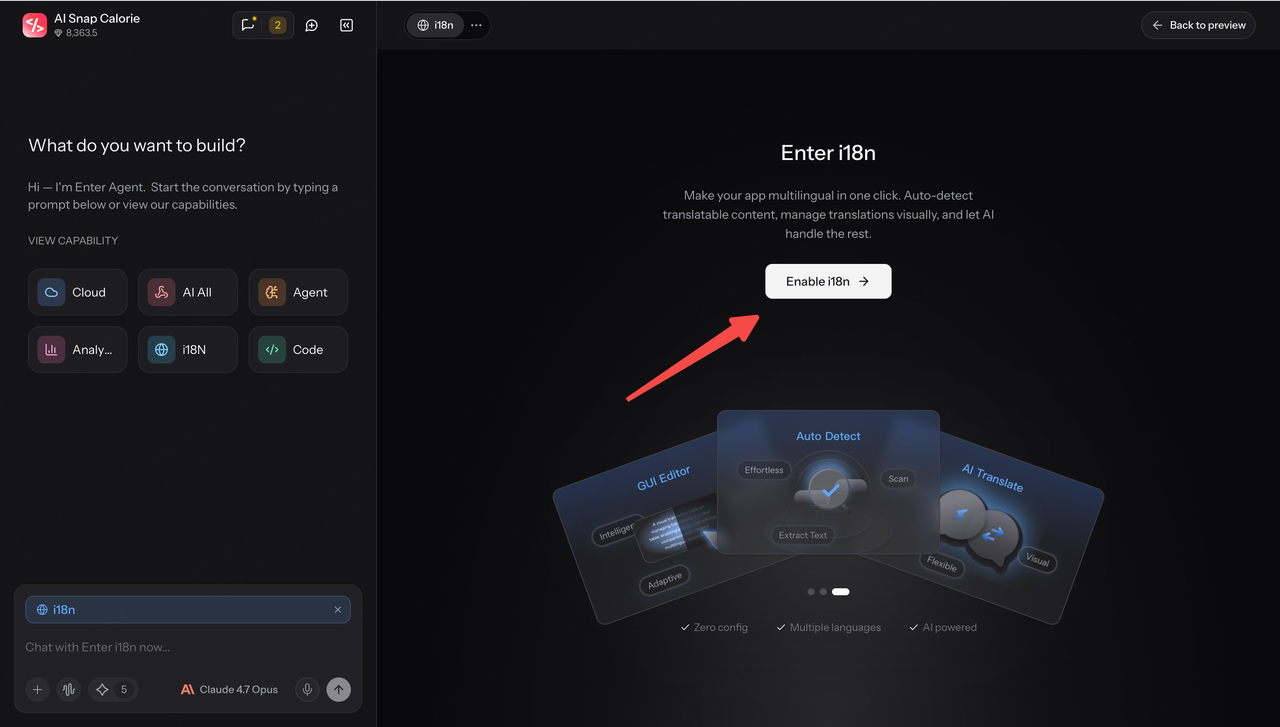
Session Three: build or edit a new feature from the chat box
4. While one session is running, switch to another session to check progress, start a new task, or review completed work.
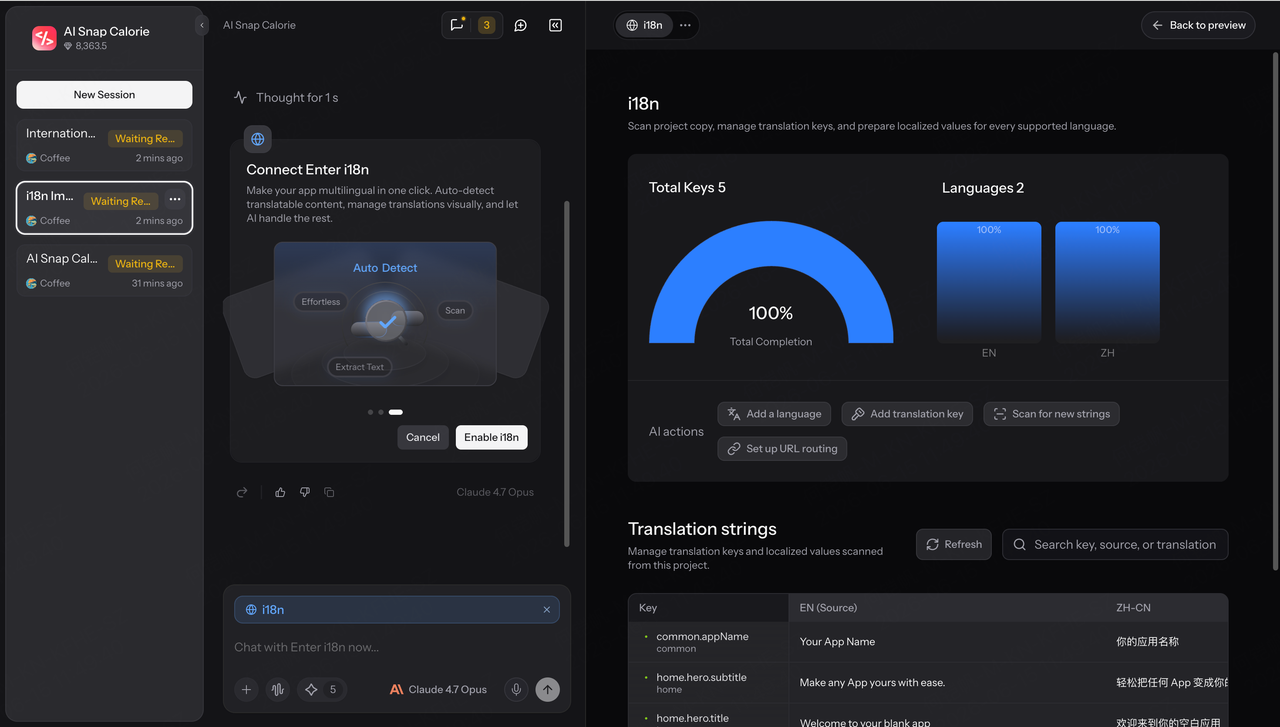
When a session finishes, open the preview panel to inspect the result. If needed, use session-scoped restore to roll back that specific session's changes.
What This Means for Your Builds
Multiple sessions make Enter projects easier to organize.
You can keep different tasks in separate conversations. You can see which sessions are running, waiting for input, or ready for review. You can understand which session created a version. And you can publish through a more intentional build flow.
Enter projects are moving from one long chat into a clearer session-based workspace.
Multi-session is now live in Enter.