Configure Custom MCP in Enter to Connect Your Agent to Everything
Enter now supports user-configured MCP Servers, allowing your Agent to directly call external services like Notion, Supabase, Context7, and more. This guide walks you through how to add and manage MCP configurations in Enter.
What is MCP?
MCP (Model Context Protocol) is an open protocol standard that allows AI Agents to connect to and use external tools and data sources. Think of it as a "universal plug" for your Agent — by configuring an MCP Server, your Enter Agent can seamlessly interact with third-party services like Supabase and Notion, fetching data and performing actions to greatly expand your Agent's capabilities.
In Enter, you can add an MCP Server with a simple JSON configuration — no complex development work required.
Where to Find the MCP Configuration Entry
Enter provides multiple entry points for managing MCP configurations. Choose whichever method suits your workflow.
Option 1: Via the Agent Panel
Open your project and click the Agent Settings icon in the interface.
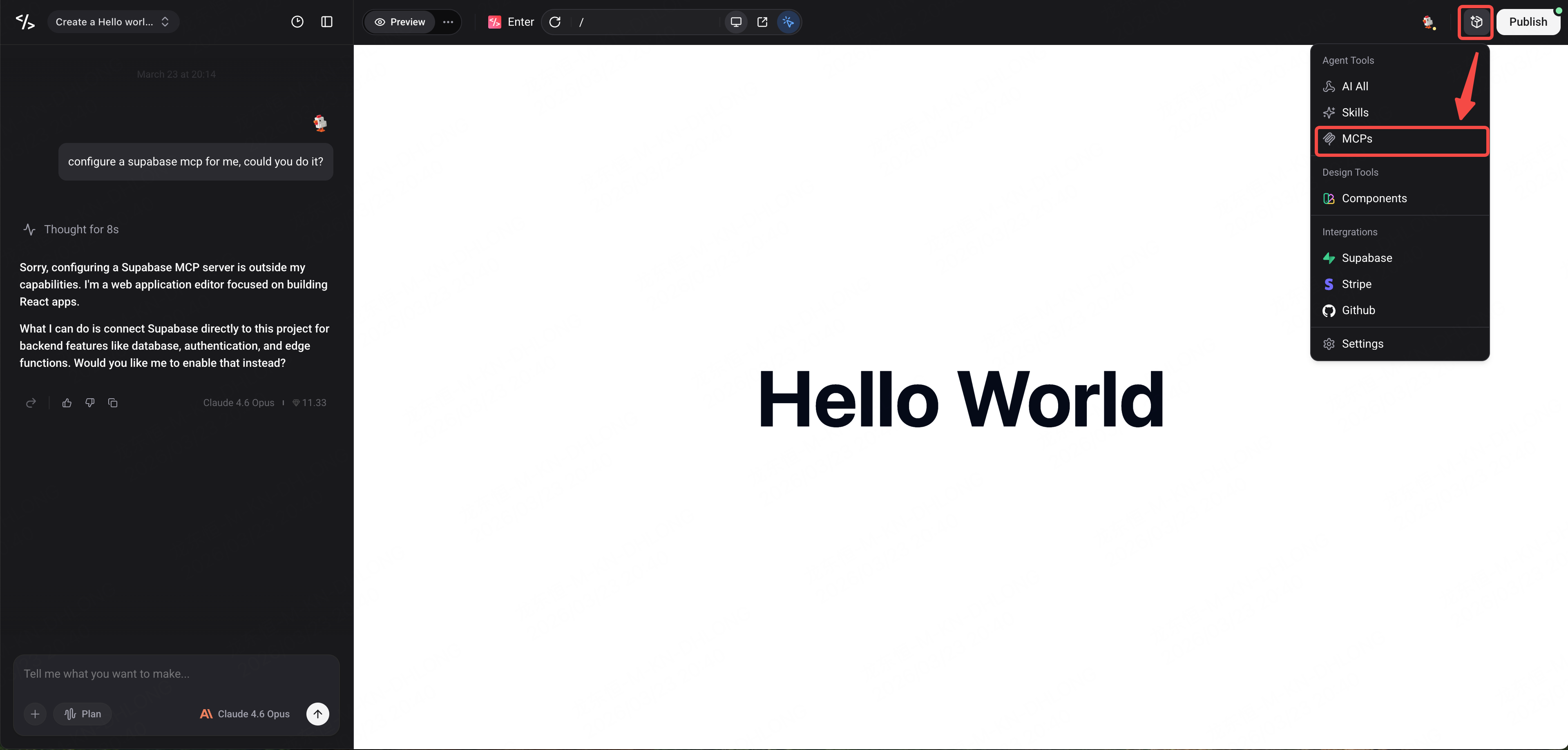
- In the panel that opens, find MCPs — you'll see MCP-related configuration options there.
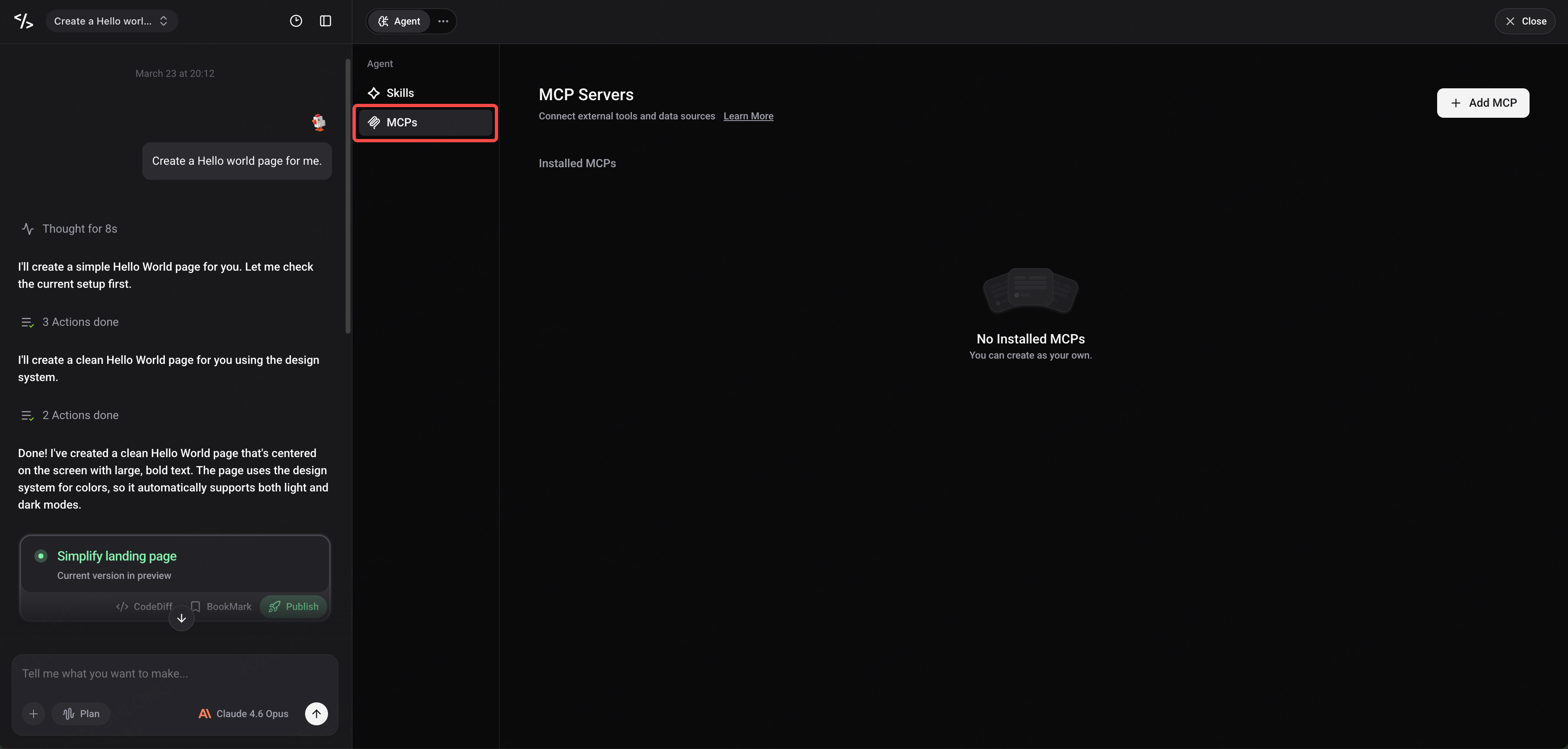
Option 2: Via the MCPs Section in the Agent Panel
- Open the Agent Panel, which displays all tools available to the Agent, including sections for MCPs, Skills and more in the future.
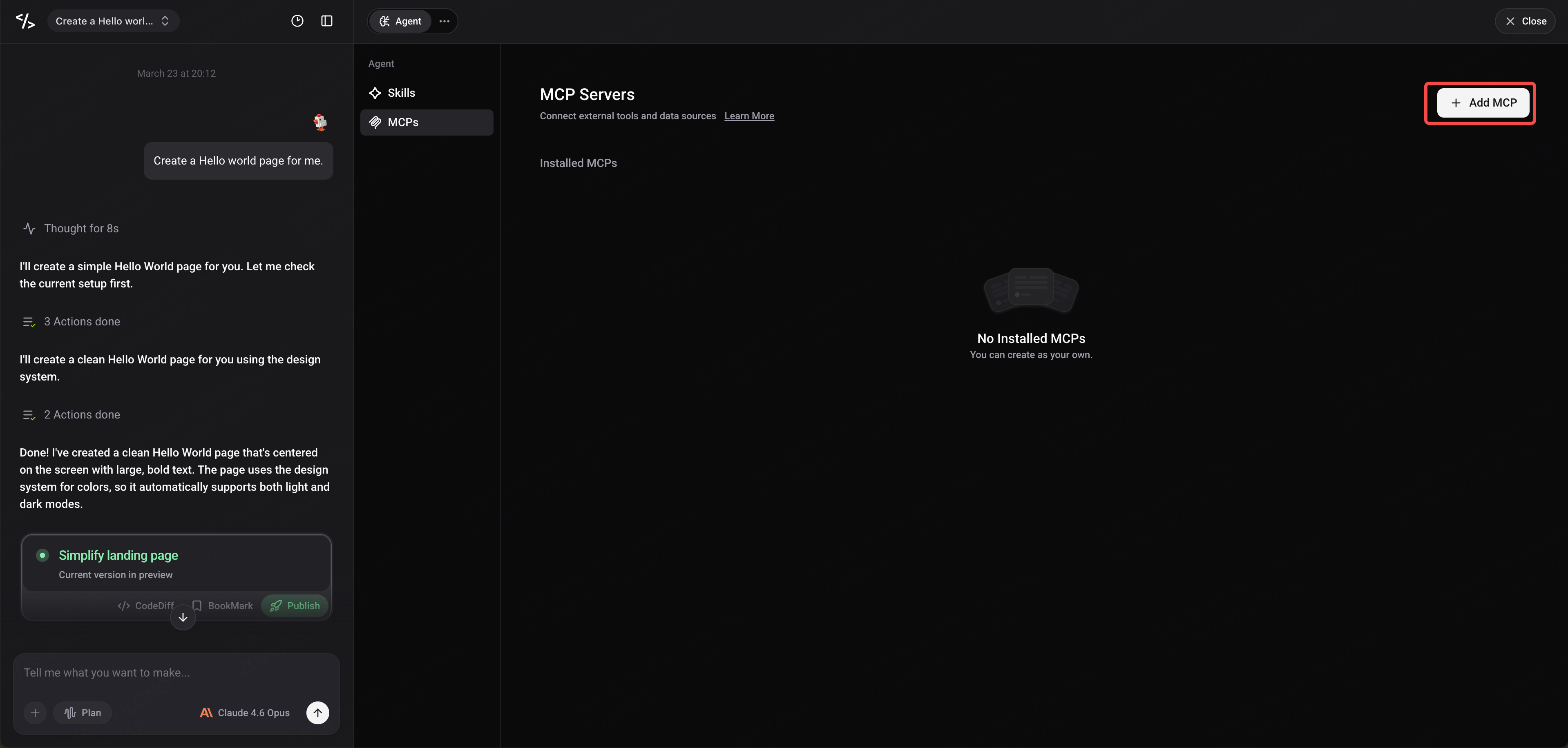
- Find the MCPs section to see the list of currently configured MCP Servers and the add button.
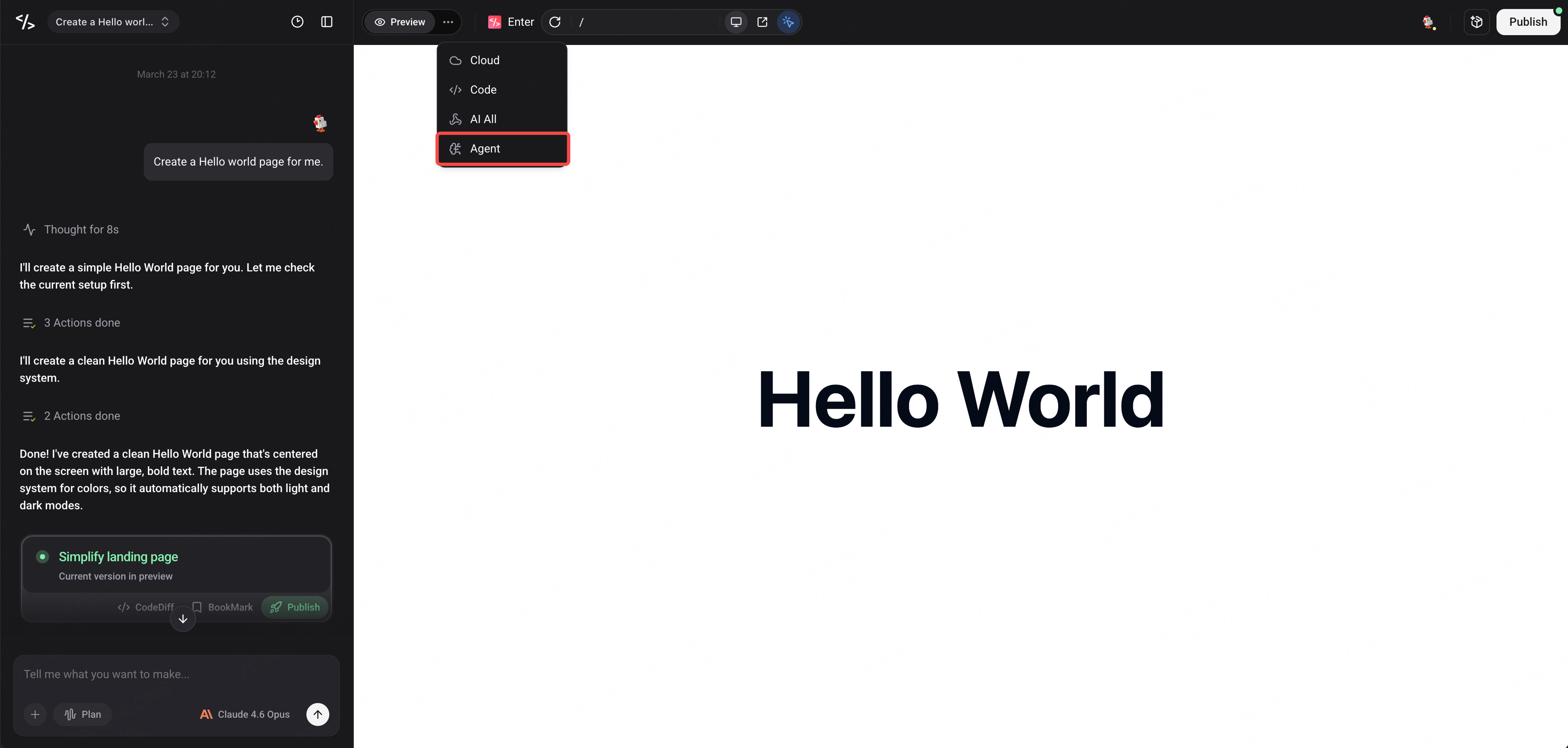
Adding an MCP Server
Follow these steps to manually add an MCP Server from the MCPs section:
Click the Add MCP button.
- In the configuration form that appears, enter the MCP Server's JSON configuration. The format is as follows:
{
  "mcpServers": {
    "server-name": {
      "url": "https://your-mcp-server-url/mcp",
      "headers": {
        "Authorization": "Bearer YOUR_API_KEY"
      }
    }
  }
}- After confirming the JSON format is correct, click the Connect button.
- Enter will automatically attempt to connect to the MCP Server. Once connected, the status will display as connected.
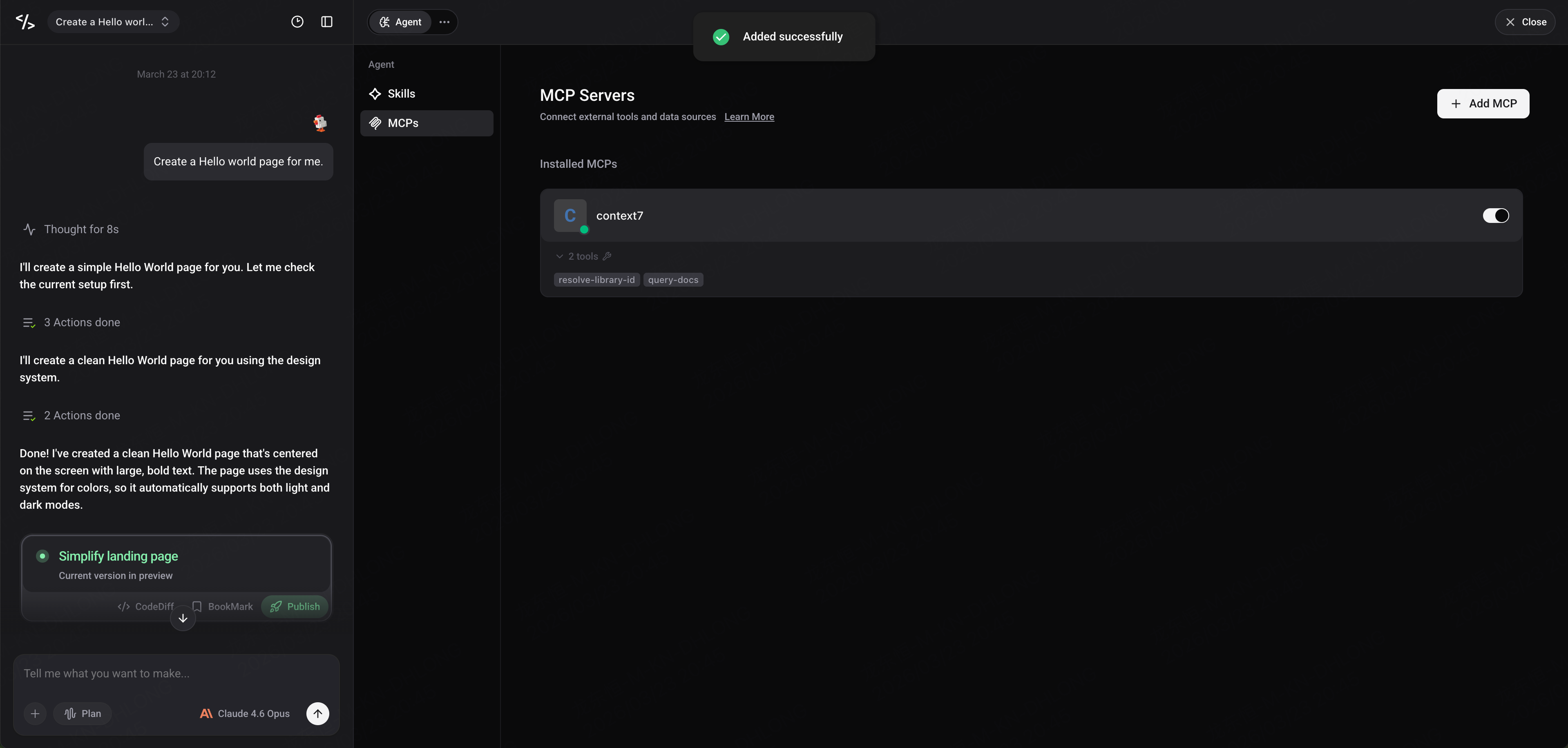
Managing Existing MCP Servers
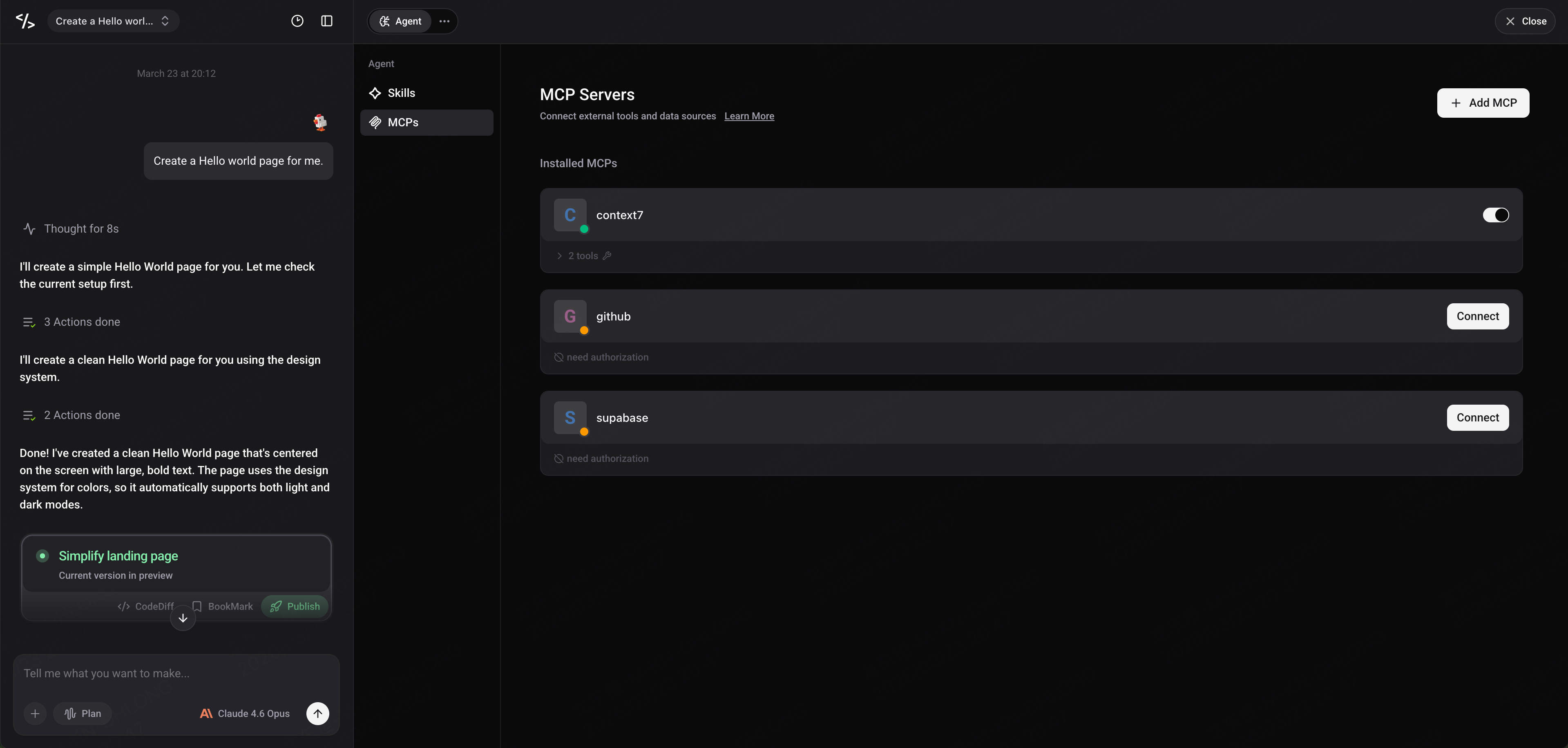
After adding MCP Servers, you can view all configured ones in the MCP list. Each MCP entry displays the following information:
- Name: The MCP Server's name
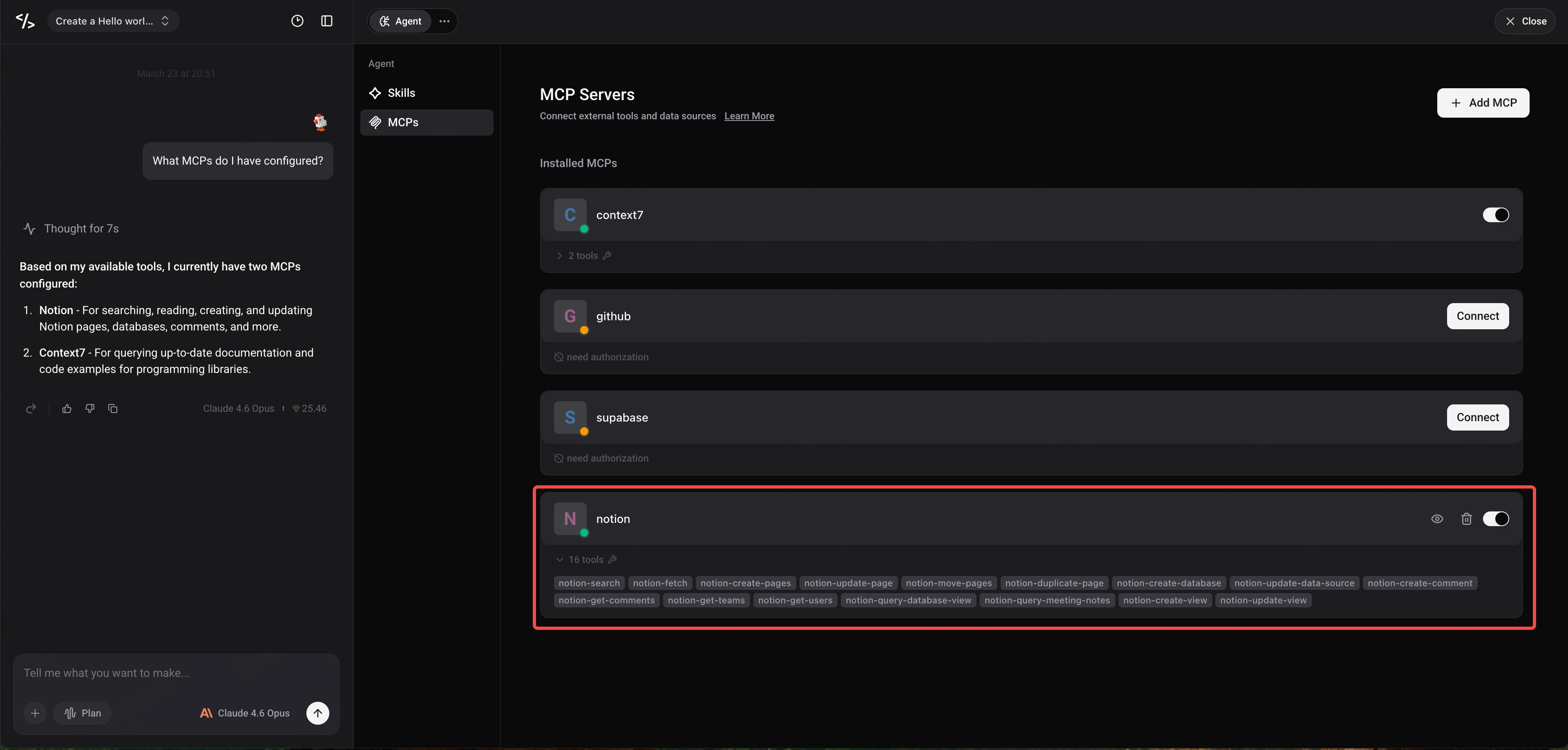
- Tools: The list of tools provided by the Server
- Connection Status: The current connection status
Available Actions
For each MCP Server, you can perform the following actions:
- Enable/Disable: Toggle whether the Agent uses this MCP
- Delete: Remove an MCP configuration you no longer need
If you need to modify an MCP's configuration (e.g., change the API Key or URL), we recommend deleting the existing MCP first and then re-adding it with the updated configuration.
Handling MCP Servers That Require OAuth
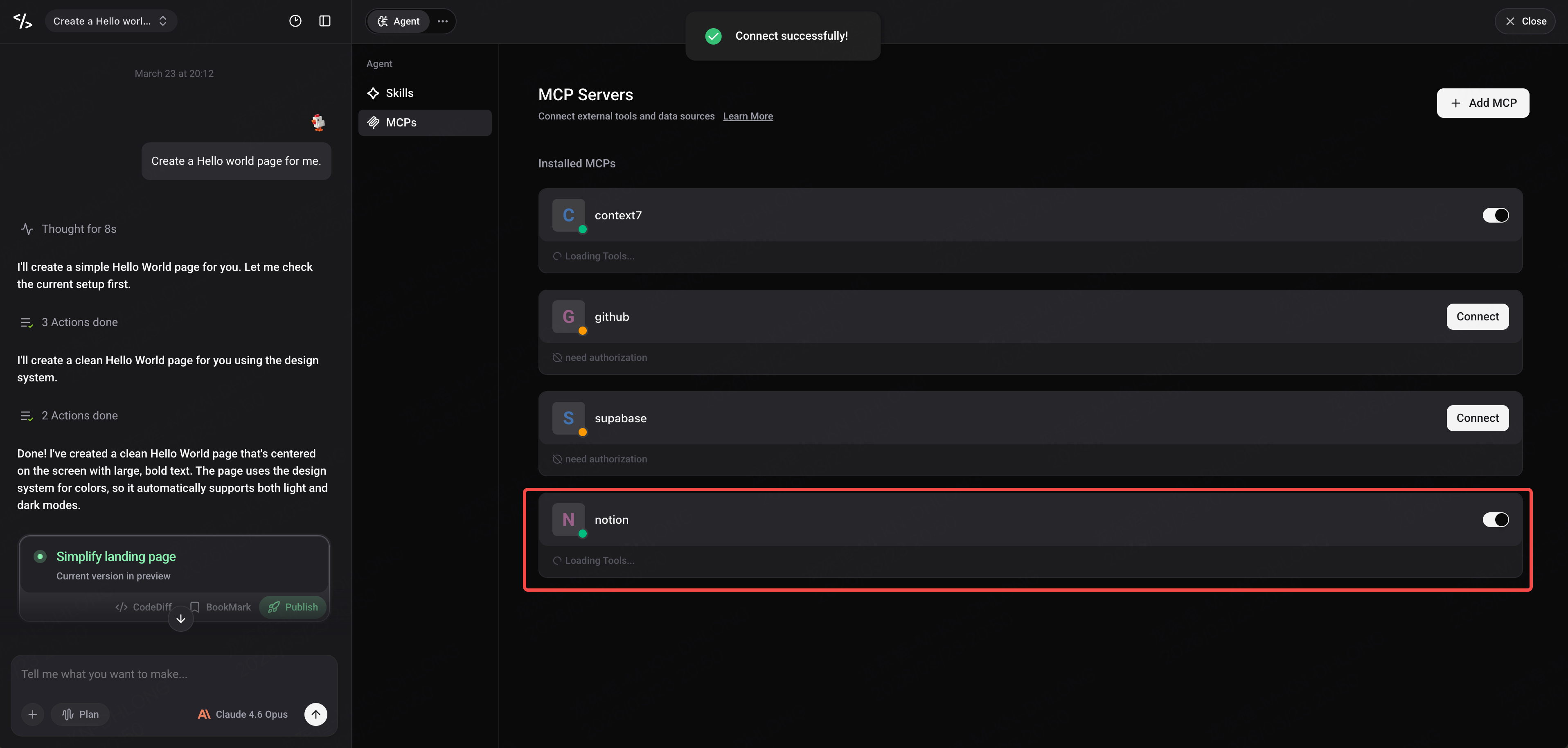
Some MCP Servers (such as Notion) require OAuth authentication. Enter has built-in support for the OAuth authentication flow.
- When you connect to an MCP Server that requires OAuth, the status will display as Connect.
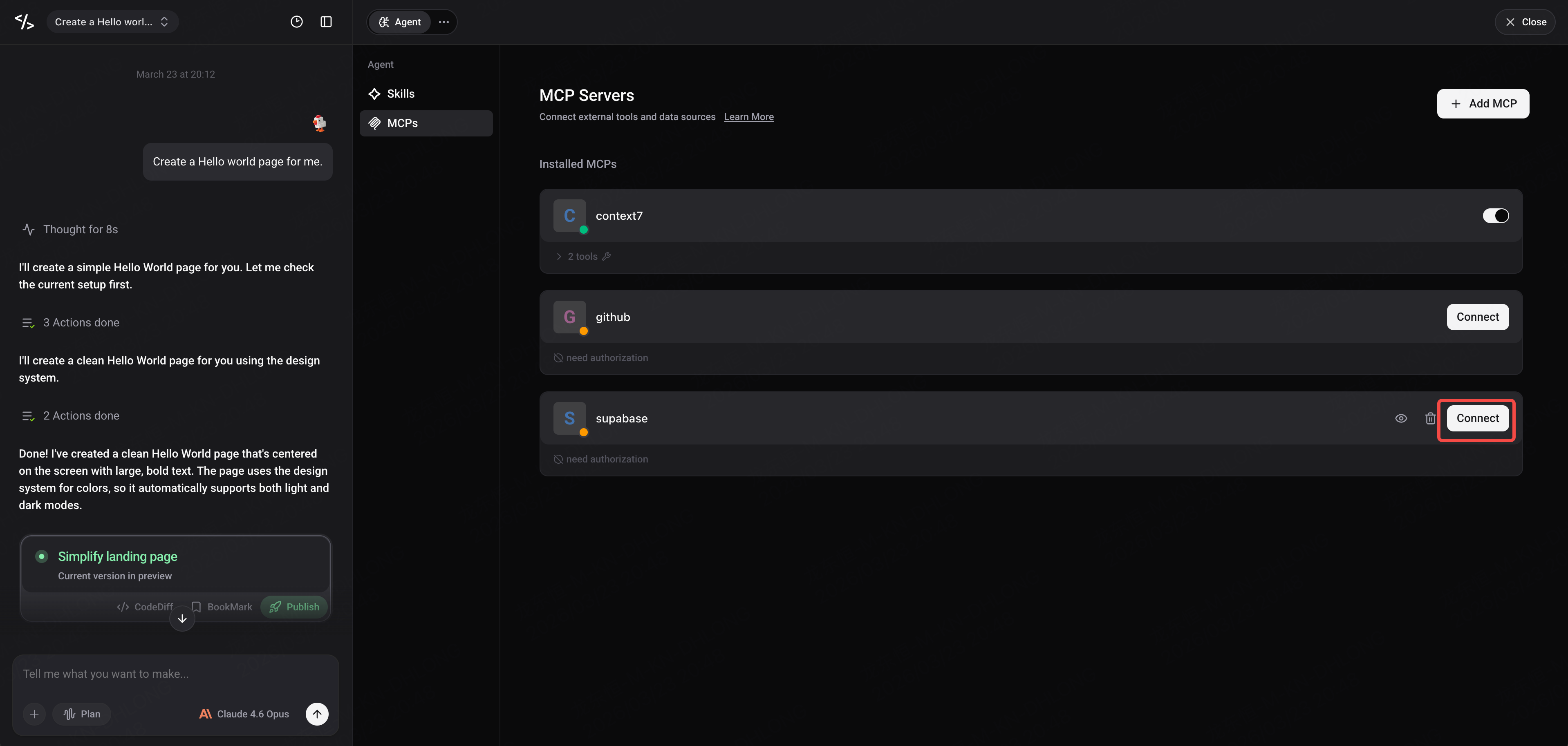
- Enter will automatically redirect you to the corresponding service's authorization page to complete the authorization.
- After authorization is complete, return to Enter and the MCP connection will be established automatically. If the connection doesn't recover automatically, you can click Connect again to reconnect.
Viewing and Using MCP Tools in Chat
Once MCP is configured, your Agent can use these external tools directly in Chat.
Viewing Configured MCPs
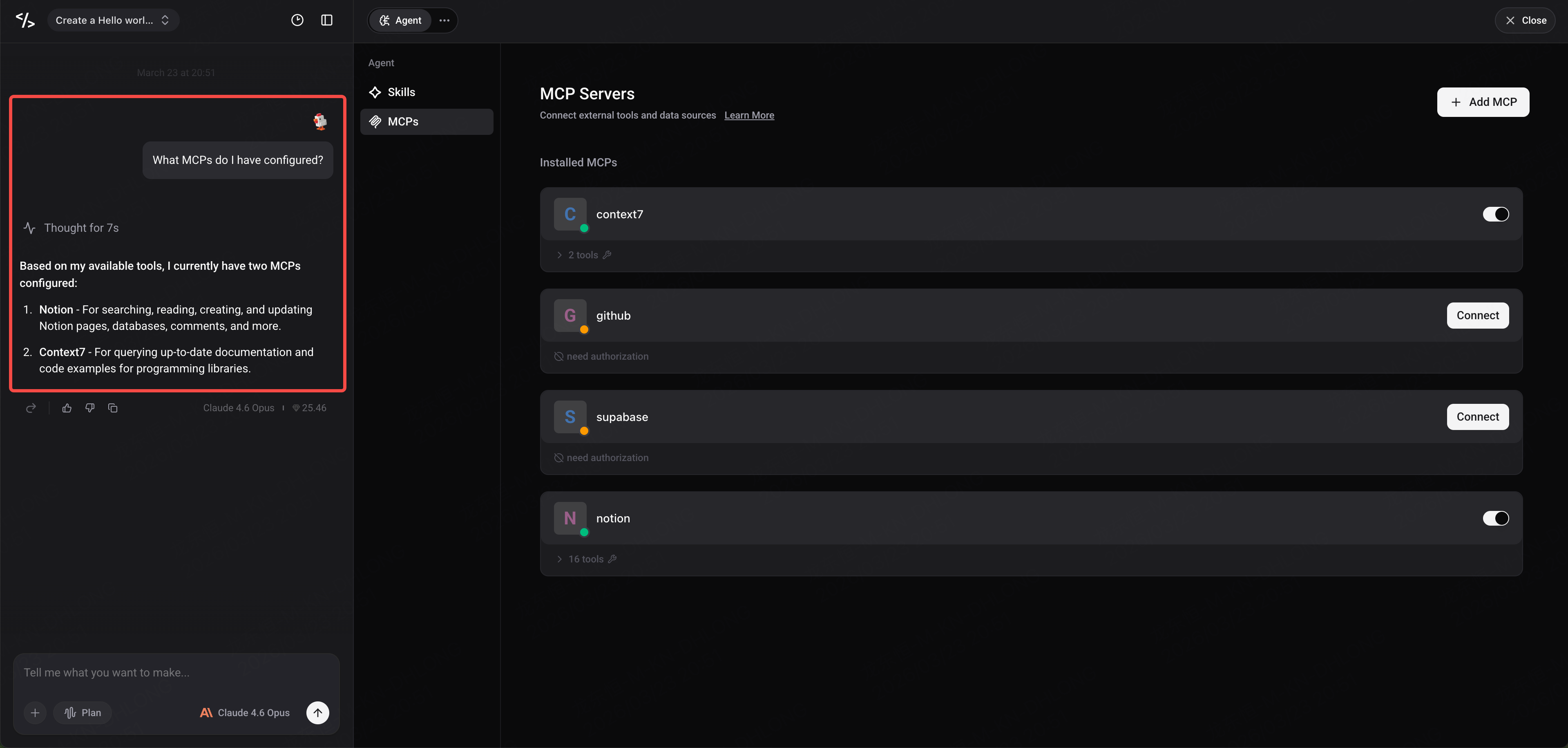
You can ask the Agent in Chat which MCPs are currently configured for your project. For example:
"What MCPs do I have configured?"
The Agent will list all currently connected MCP Servers and the tools they provide.
Using MCP Tools
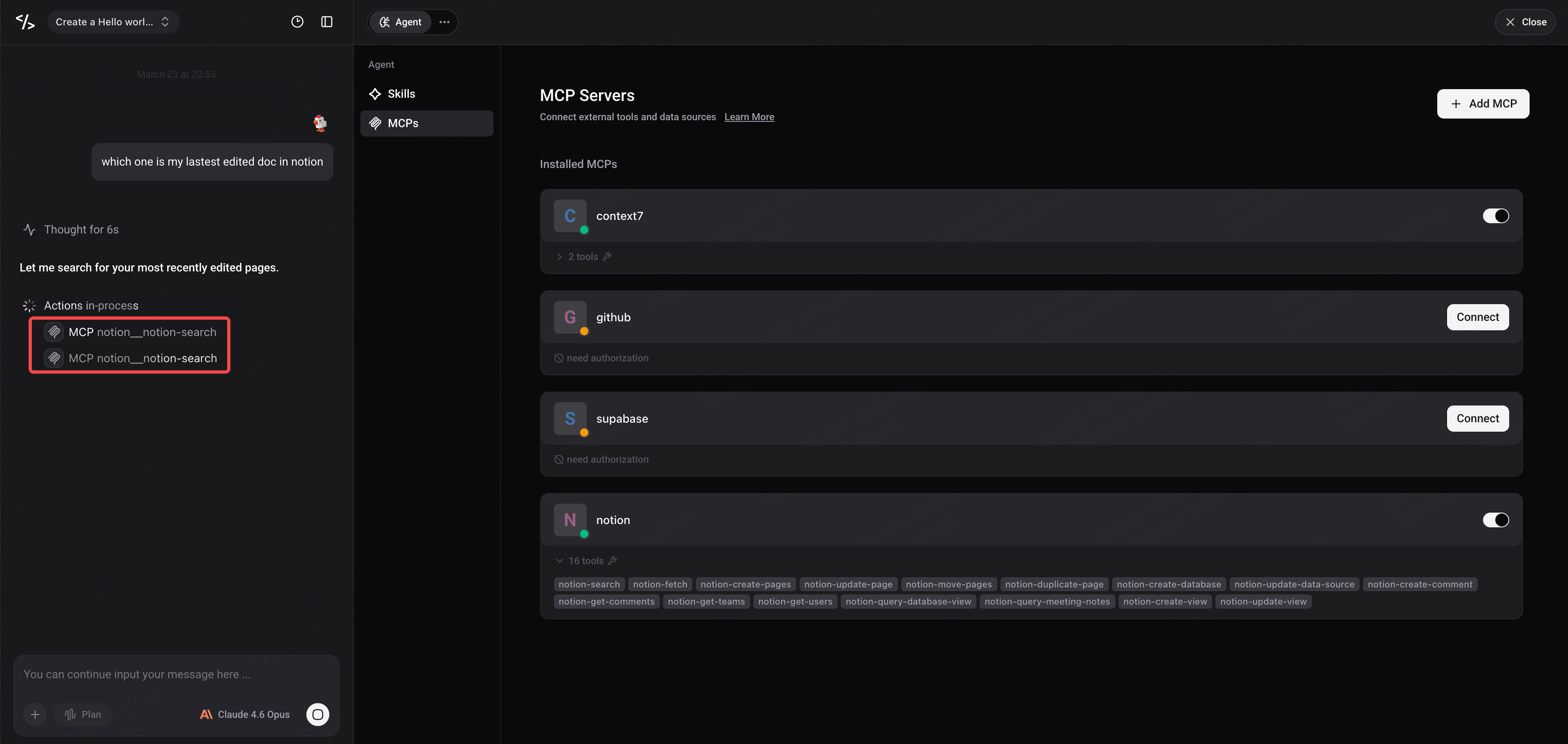
- In Chat conversations, the Agent will automatically recognize and call connected MCP Tools.
- When a tool is called, you can see the MCP Tool's icon and name, clearly showing which external service the Agent is using.
To view MCP tool information, click the tool icon for details.
Common MCP Server Configuration Examples
Here are some configuration examples for popular services that you can copy and use directly.
Context7
{
  "mcpServers": {
    "context7": {
      "url": "https://mcp.context7.com/mcp",
      "headers": {
        "CONTEXT7_API_KEY": "YOUR_API_KEY"
      }
    }
  }
}
Notion
{
  "mcpServers": {
    "notion": {
      "url": "https://mcp.notion.com/mcp"
    }
  }
}
Supabase
{
  "mcpServers": {
    "supabase": {
      "url": "https://mcp.supabase.com/mcp"
    }
  }
}
Important: Only URL-Based MCP Connections Are Supported
The MCP protocol defines two main transport methods, corresponding to two different configuration formats. Enter currently only supports one of them — please make sure you understand the difference before configuring.
Supported: url Method (Streamable HTTP)
This method connects to MCP Servers remotely via the HTTP protocol, using the "url" field in the configuration to point to the service endpoint. This is also the modern standard transport method recommended by the MCP protocol.
{
  "mcpServers": {
    "server-name": {
      "url": "https://mcp.example.com/mcp",
      "headers": {
        "Authorization": "Bearer YOUR_API_KEY"
      }
    }
  }
}
Enter supports this method, including compatibility with SSE (Server-Sent Events) Legacy mode.
Not Supported: command Method (stdio)
This method requires launching a subprocess on the user's local machine and communicating with the MCP Server via standard input/output (stdin/stdout). It uses the "command" and "args" fields in the configuration.
{
  "mcpServers": {
    "server-name": {
      "command": "npx",
      "args": ["-y", "some-mcp-server"]
    }
  }
}
This method is commonly used by desktop clients like Claude Desktop and Cursor, which run on the user's local machine and can directly launch local processes. As a web platform, Enter cannot launch local processes on the user's device, so command-based MCP configurations are not currently supported.
How to Tell if an MCP Server Can Be Used in Enter
Check the MCP Server's official documentation to confirm whether it provides an HTTP URL endpoint (typically a URL starting with https://). If the documentation only provides command/npx-based configurations, that MCP Server cannot be used directly in Enter at this time.
Many popular MCP Servers offer both stdio and HTTP access methods — simply choose the configuration with the "url" field.
Summary
With MCP configuration, your Enter Agent can easily connect to various external tools and data sources, greatly expanding its capabilities. Whether it's querying Notion documents, managing Supabase databases, or connecting to any other service that supports the MCP protocol, everything can be done with a simple JSON configuration.
Head over to Enter now and try configuring MCP for your Agent!